Viewing Forms

Learn how to navigate your forms, use filters to find what you need, and access detailed form information.

Form Types List

When you click "Forms" in the sidebar, you'll first see a list of available form types for this project. Each card shows:

  • Form type icon and color
  • Form type name (e.g., "Hot Work Permit")
  • Number of forms in each status

Click on a form type to see all forms of that type.

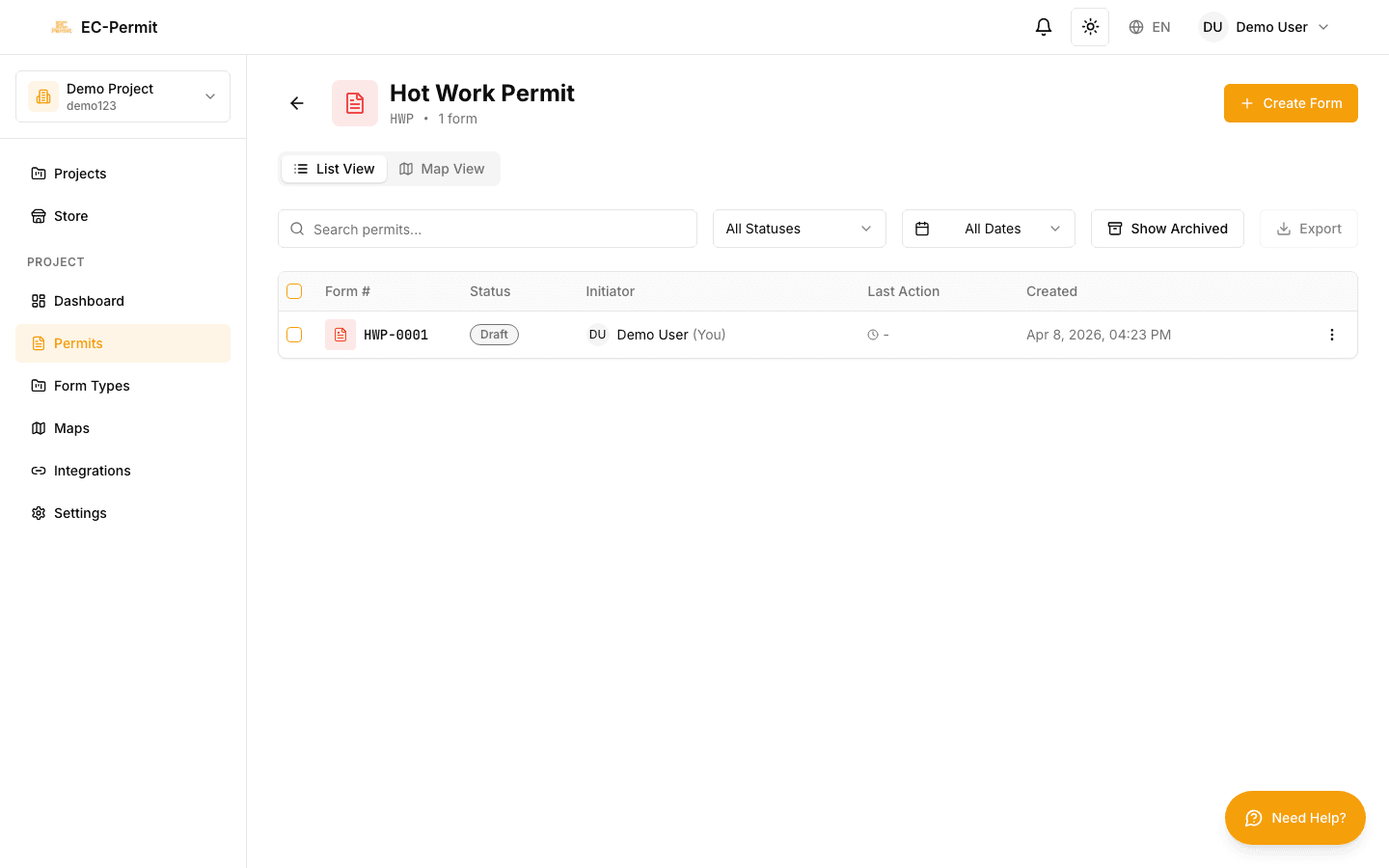
Forms List

After selecting a form type, you'll see a table of all forms. Each row displays:

ColumnDescription
CheckboxSelect forms for bulk actions (export)
Form NumberUnique identifier (e.g., "HWP-001")
StatusCurrent workflow status with color badge
InitiatorWho created the form
Last ActionMost recent action taken
CreatedWhen the form was created

Use the search box to find forms by their form number. Type the number (or part of it) and press Enter or wait for results to appear.

Filtering Forms

Use the Status Filter dropdown to show only forms in a specific status:

  • All Statuses: Show everything
  • Draft: Forms not yet submitted
  • Pending: Forms waiting for action
  • Approved: Forms that have been approved
  • ...and any other statuses defined for this form type

Combine Search and Filter

You can use search and status filter together. For example, search for "001" while filtering by "Pending" to find all pending forms with "001" in their number.

Opening a Form

Click anywhere on a form row to open the form detail view. Here you can:

  • View all form fields and their values
  • See the form history (who did what, when)
  • Take actions if available
  • Export the form as PDF

Form Detail View

The form detail view has several key areas:

Header

  • • Form number and form type name
  • • Current status badge
  • • Back button to return to list
  • • Export menu

Questions

  • • All form fields with their labels and values
  • • Editable fields if you have permission
  • • Read-only fields shown but not editable

Info Panel

  • • Click "Info" button to open
  • • Shows form metadata (initiator, dates)
  • • Full action history with timestamps

Actions

  • • Available actions shown as buttons
  • • Actions depend on current status and your permissions

Viewing Form History

Click the "Info" button (or icon) to see the complete history of a form. The history shows every action taken, including:

  • Who performed each action
  • When the action was performed
  • What the action was (Created, Submitted, Approved, etc.)
  • Any comments left with the action
  • Status changes

Bulk Export

To export multiple forms at once:

  1. 1Check the boxes next to forms you want to export
  2. 2Click the "Export" dropdown button
  3. 3Choose format: CSV, JSON, or PDF