Understanding the Interface

EC-Permit has a clean, intuitive interface designed for efficient permit management. This guide will help you navigate the main areas of the application.

Main Layout

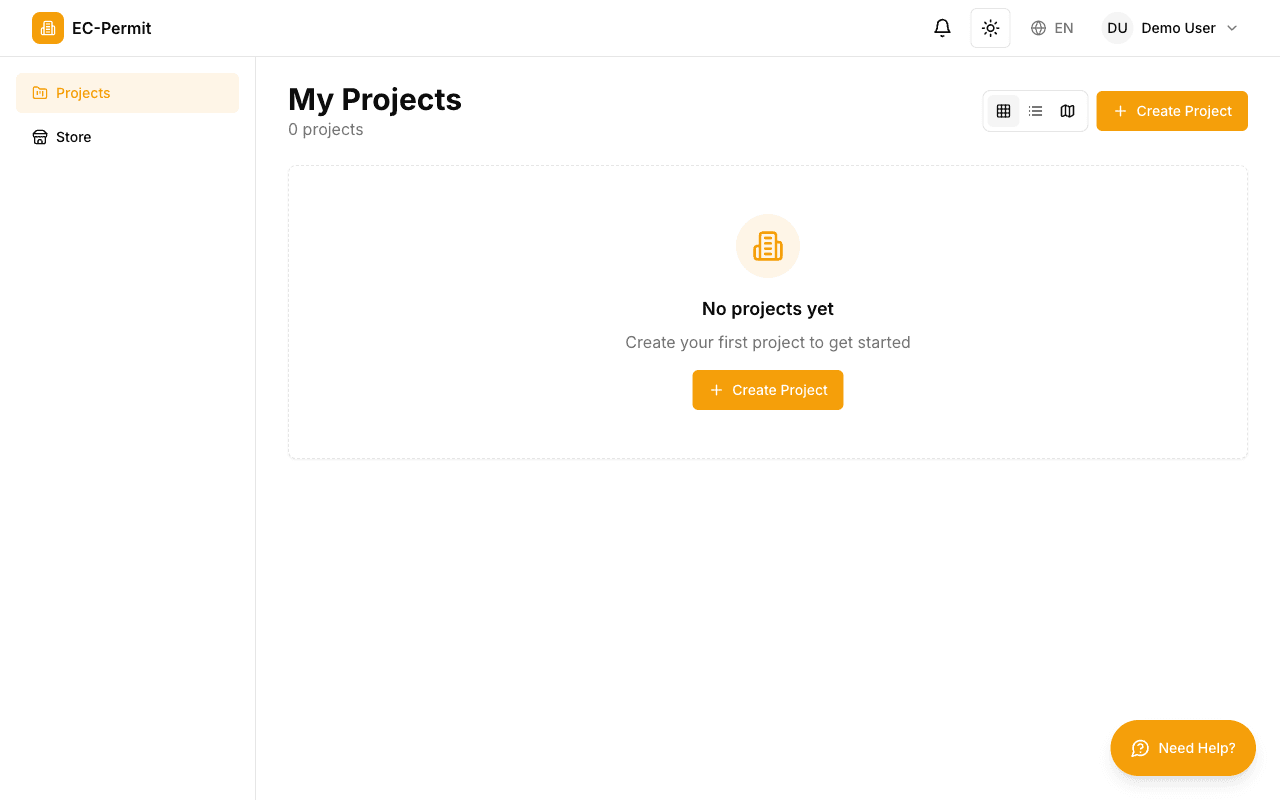
The application is organized into several key areas:

EC-Permit main application layout showing sidebar, header, and content area
The main application layout with sidebar navigation, header bar, and content area
Sidebar Navigation

Located on the left side, provides quick access to all main sections: Dashboard, Forms, Users, Roles, Settings, and more.

Header Bar

Contains the project switcher, notification bell, user profile menu, and theme toggle.

Main Content Area

The central area where you interact with forms, view dashboards, and manage content.

Context Actions

Action buttons and menus appear contextually based on what you're viewing.

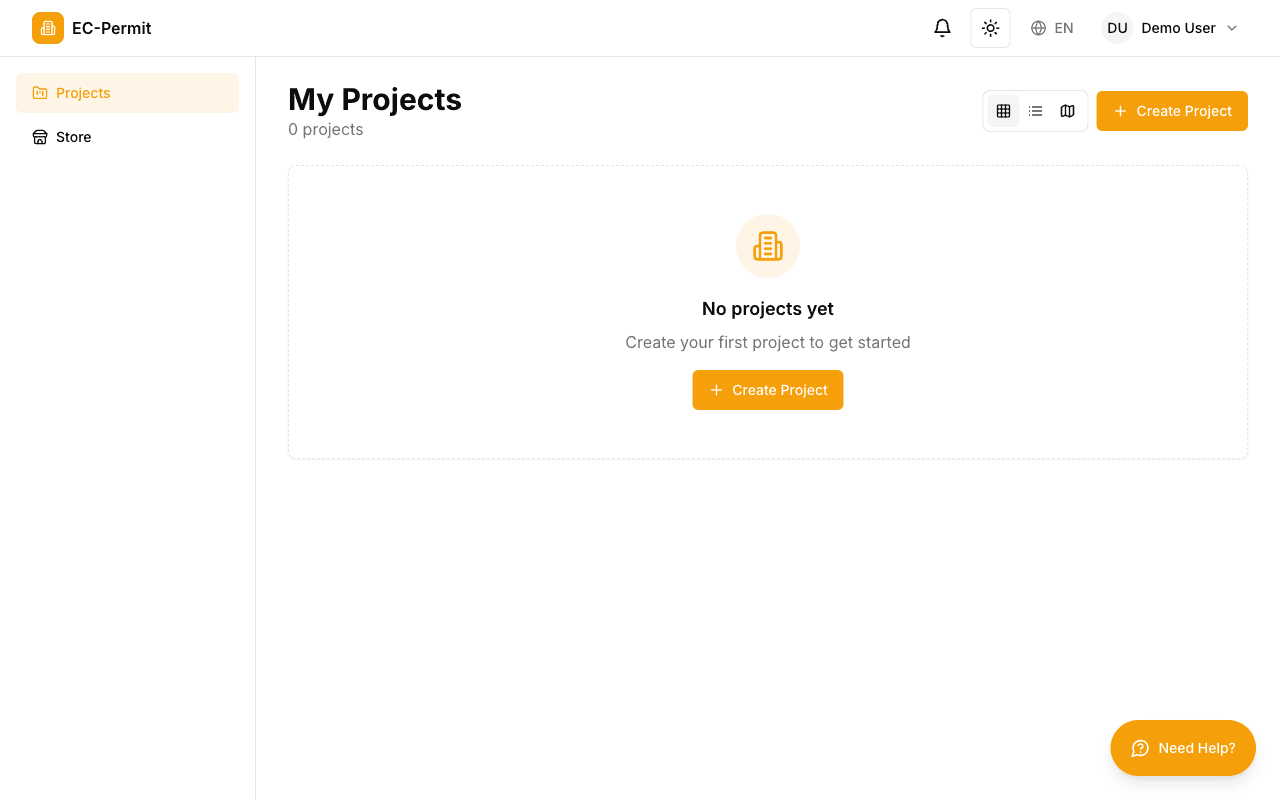
The sidebar is your main navigation hub. Here's what each section contains:

EC-Permit sidebar showing Projects and Store navigation links
The sidebar navigation provides quick access to Projects and Store
Dashboard

Project overview with form statistics, recent activity, and quick charts. See form counts by status and recent submissions.

Forms

Access all form types in your project. Create new forms, view existing ones, and take actions like approvals.

Form Types

(Admin) Design and manage form types. Create workflows, add questions, and configure PDF templates.

Users

(Admin) Manage project members. Invite new users, assign roles, and remove access.

Roles

(Admin) Create custom roles with specific permissions. Control who can create, edit, or approve forms.

Settings

(Admin) Configure project settings, integrations, and preferences.

Mobile Navigation

On mobile devices, the sidebar collapses into a hamburger menu accessible from the header. Tap the menu icon to expand navigation options.

Project Switcher

If you have access to multiple projects, use the project switcher in the top-left corner of the sidebar to navigate between them. The current project name is displayed, and clicking it opens a dropdown with all your accessible projects.

Notifications & To-Do

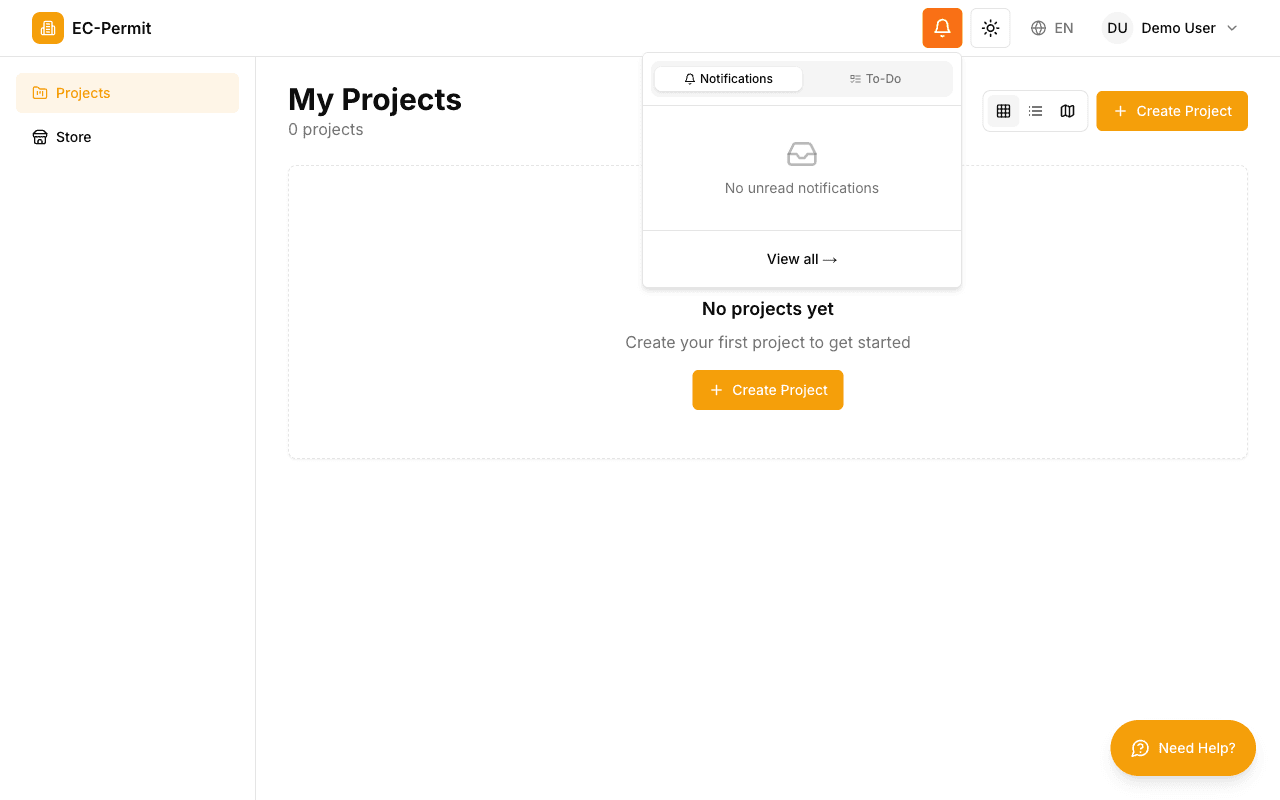
The bell icon in the header shows your pending notifications and to-do items:

EC-Permit notifications panel showing Notifications and To-Do tabs
Click the bell icon to view your notifications and to-do items
  • To-Do Items: Forms waiting for your action (e.g., approvals)
  • Notifications: Updates about forms you're involved with
  • Badge Count: Red badge shows number of unread items

Theme & Language

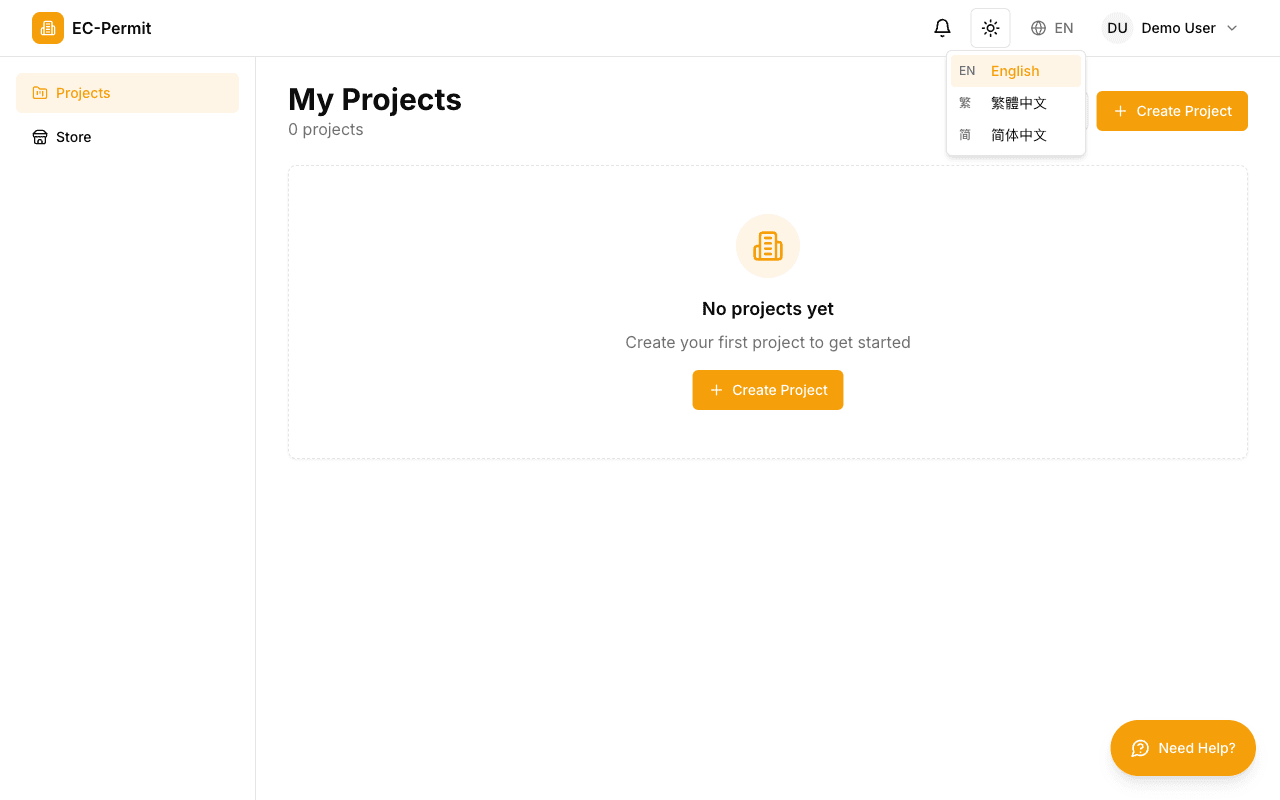
EC-Permit supports both light and dark modes, plus multiple languages:

EC-Permit language selector dropdown showing English, Traditional Chinese, and Simplified Chinese options
Click the language button to switch between English, 繁體中文, and 简体中文
  • Theme Toggle: Click the sun/moon icon to switch between light and dark modes
  • Language Selector: Choose between English, Traditional Chinese (繁體中文), or Simplified Chinese (简体中文)

Responsive Design

EC-Permit works on all devices:

🖥️
Desktop

Full sidebar visible

📱
Tablet

Collapsible sidebar

📲
Mobile

Sheet-based menu