Form Status Guide
Forms move through different statuses as they progress through the workflow. Understanding these statuses helps you know what to expect and what actions to take.
Custom Statuses
Your project may have custom status names configured by your admin. The statuses below are common examples, but yours may differ.
Common Statuses
Draft—Form has been created but not yet submitted
Who sees it:Only the creator and project admins
What's next:Complete all required fields and submit
Pending Review—Form submitted and waiting for initial review
Who sees it:Reviewers, creator, and admins
What's next:Reviewer will check and either approve or return for changes
Pending Approval—Form reviewed and waiting for final approval
Who sees it:Approvers, reviewers, creator, and admins
What's next:Approver will approve or reject
Approved—Form has been approved and work can proceed
Who sees it:All project members with view permission
What's next:Work can begin; form may progress to 'In Progress' or 'Completed'
Rejected—Form was rejected and needs significant changes
Who sees it:Creator and admins
What's next:Creator reviews feedback, makes changes, and resubmits
Returned—Form returned for minor corrections
Who sees it:Creator and admins
What's next:Creator makes requested changes and resubmits
In Progress—Work authorized by the permit is underway
Who sees it:All project members with view permission
What's next:Complete the work and close the permit
Completed—Work finished and permit closed
Who sees it:All project members with view permission
What's next:Form archived; no further actions needed
Cancelled—Form cancelled and no longer valid
Who sees it:Creator, admins, and those who were involved
What's next:Form archived; start a new form if needed
Expired—Permit validity period has passed
Who sees it:All project members with view permission
What's next:Create a new form if work is still needed
Example Workflow
Here's a typical workflow showing how a form moves through statuses:
Draft→Pending Review→Pending Approval→Approved→In Progress→Completed
Alternate Paths
- • From Pending Review → Returned (for corrections) → back to Draft
- • From Pending Approval → Rejected → back to Draft
- • From any status → Cancelled (by admin)
- • Approved permits may auto-transition to Expired after validity period
Status Badges
Status badges are color-coded throughout the app for quick recognition:
DraftPendingWaitingApprovedRejectedActiveComplete
Checking Form Status
You can see a form's status in several places:
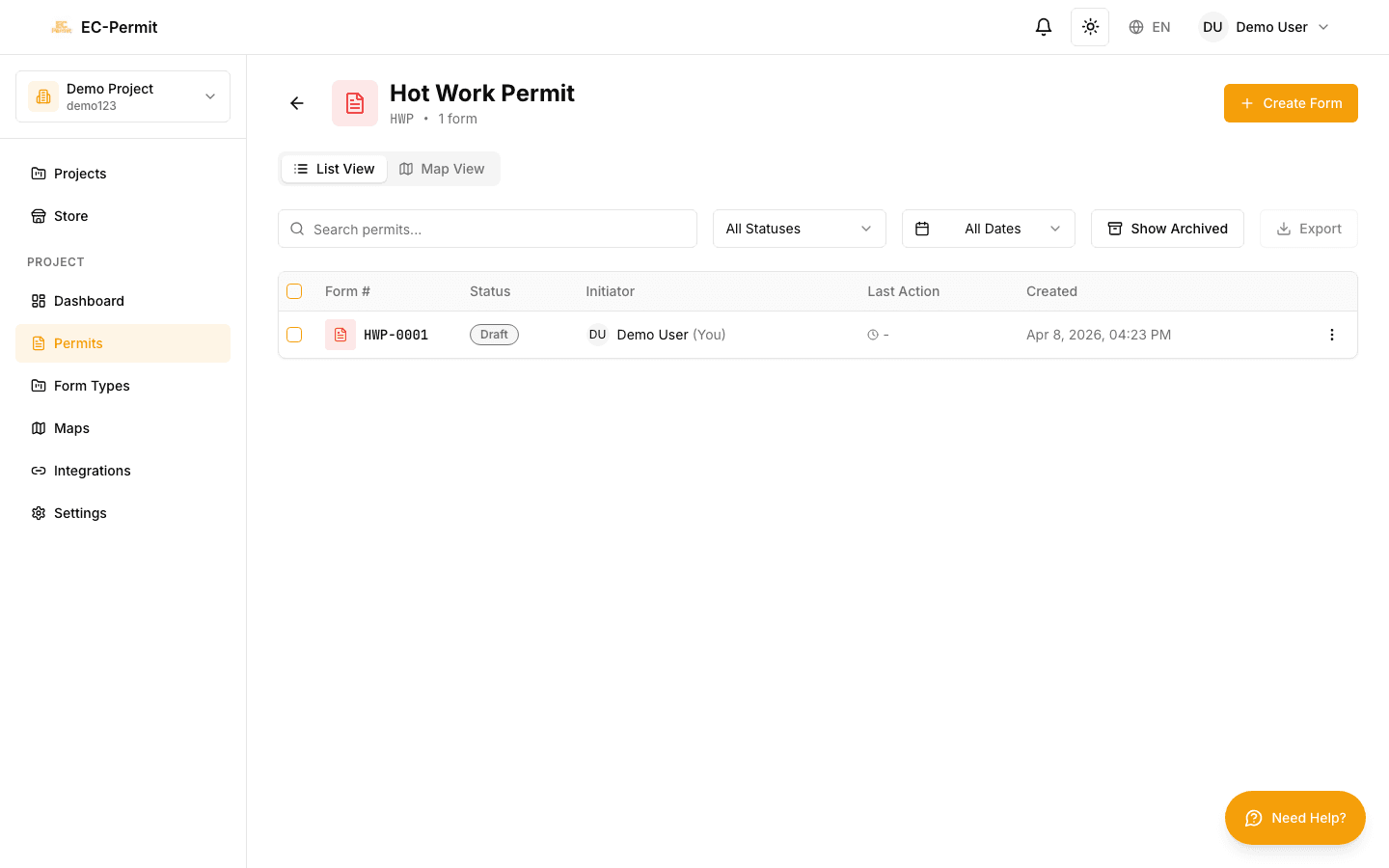
- Forms List: Status column shows current status for each form
- Form Detail: Status badge in the header
- Form Info Panel: Full history of status changes
- Notifications: Status updates appear in your notifications
Forms Waiting for You
To find forms that need your action:
- 1Click the Notifications bell icon
- 2Look at the To-Do tab
- 3Forms requiring your action are listed with their status