Logging In to EC-Permit
Access your EC-Permit account from any device. This guide covers signing in, password recovery, and account preferences.
Signing In
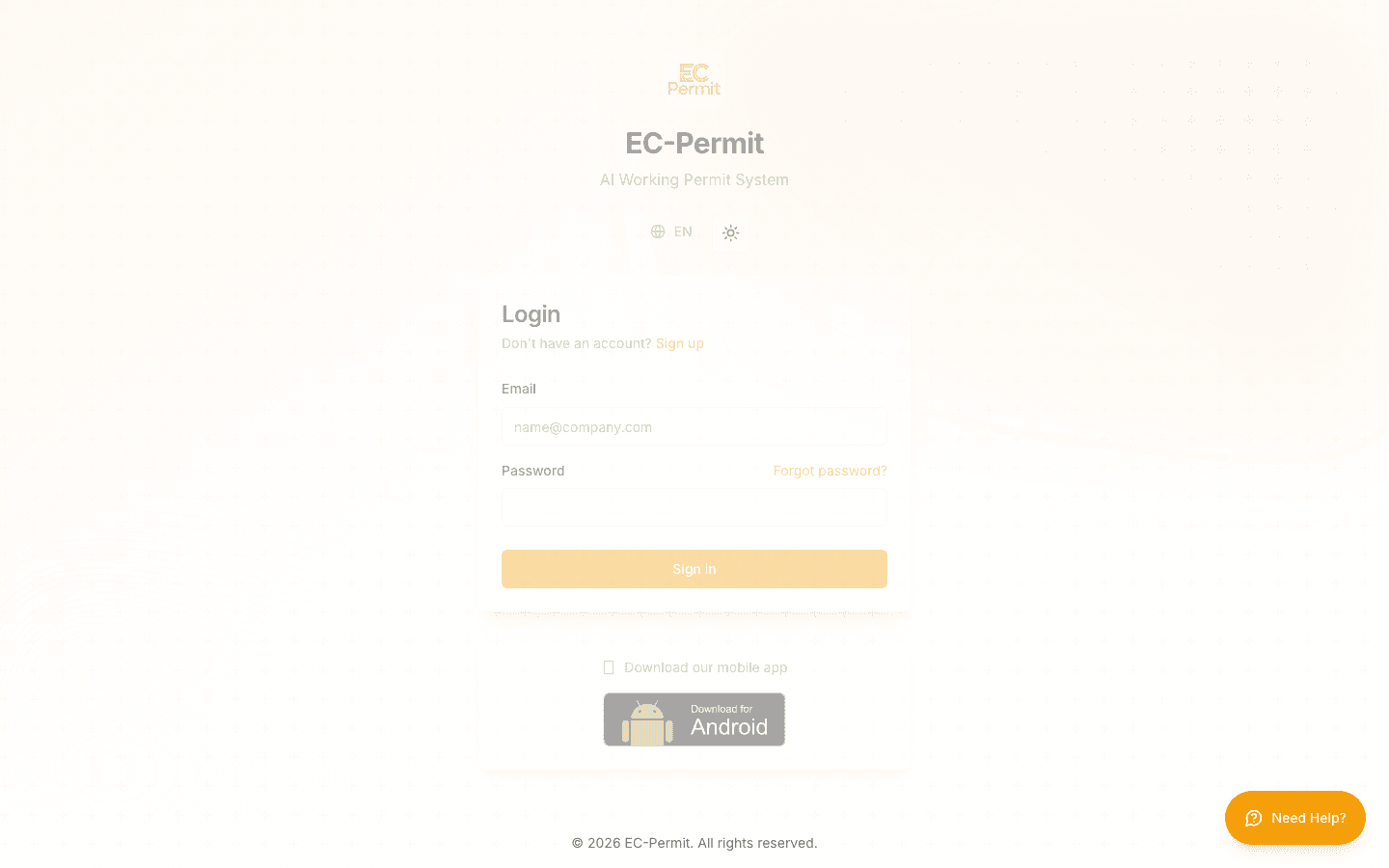
To access EC-Permit, navigate to the login page and enter your credentials:
- 1Go to the login page
Visit
app.ecpermit.com/loginor click "Login" from the landing page. - 2Enter your email address
Use the email address associated with your EC-Permit account.
- 3Enter your password
Type your password. Passwords are case-sensitive.
- 4Click "Sign In"
You'll be redirected to your projects page upon successful login.
Stay Signed In
Forgot Password
If you've forgotten your password, you can reset it:
- 1Click "Forgot password?" on the login page
- 2Enter your email address
- 3Check your email for a reset link
- 4Click the link and create a new password
Reset Link Expiry
Creating a New Account
There are two ways to get an EC-Permit account:
Self Registration
Click "Sign Up" on the login page and fill in your details. You'll receive a confirmation email to verify your account.
Invitation
If someone invites you to a project, you'll receive an email with a link. Click it to create your account and join the project.
Account Preferences
Customize your EC-Permit experience right from the login page:
Language
Switch between English, Traditional Chinese (繁體中文), or Simplified Chinese (简体中文) using the language selector.
Theme
Toggle between light and dark mode using the theme button. Your preference is saved for future visits.
Mobile App
EC-Permit is also available as a mobile app for iOS and Android:
Download links are available on the login page. The mobile app provides the same features with an optimized touch interface for on-site use.
Troubleshooting
Can't sign in?
- Check that your email is spelled correctly
- Ensure Caps Lock is off when typing your password
- Try the password reset flow if you're unsure of your password
Not receiving emails?
- Check your spam/junk folder
- Add
noreply@ecpermit.comto your contacts - Contact your IT department if emails are being blocked