Filling Out Forms
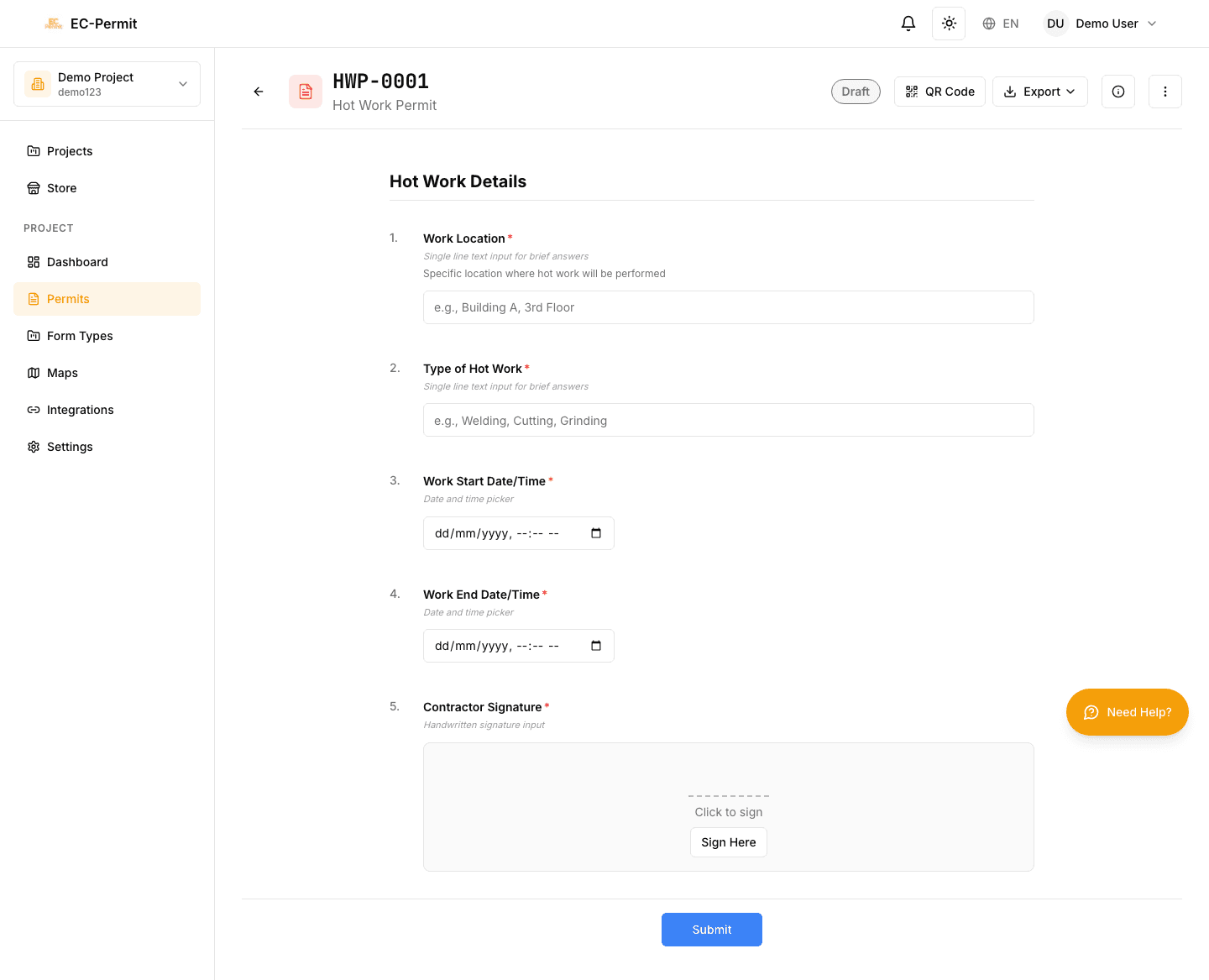
EC-Permit supports many question types to capture different kinds of information. Learn how to complete each type and save your progress.
Auto-Save
Question Types
Here are the most common question types you'll encounter:
Text
Single line or multi-line text entry
- Short Text: Single line for names, titles, brief answers
- Long Text: Multi-line textarea for detailed descriptions
- Some fields may have character limits
Number
Numeric values with optional constraints
- Enter whole numbers or decimals
- May have minimum/maximum value limits
- Unit labels (kg, meters, etc.) are shown if configured
Date & Time
Date picker with optional time selection
- Click the field to open a calendar picker
- Select a date, and optionally a time
- Date range fields require start and end dates
Single/Multiple Choice
Select from predefined options
- Single Choice: Radio buttons or dropdown - pick one option
- Multiple Choice: Checkboxes - select all that apply
- Some questions allow an "Other" option with text input
File Upload
Attach documents, photos, or other files
- Click the upload area or drag-and-drop files
- Supported formats depend on configuration (usually images, PDFs, docs)
- Maximum file size is typically 10MB per file
- Multiple files may be allowed
- Click a file to preview or download
- Click the × to remove an uploaded file
Signature
Capture electronic signatures
- Click in the signature area to open the pad
- Draw your signature using mouse or touch
- Click "Clear" to try again
- Click "Save" to capture the signature
- Signatures are timestamped and stored securely
User Picker
Select project team members
- Click to open a searchable dropdown
- Shows users from the project team
- May be filtered by role (e.g., only Safety Officers)
- Single or multiple user selection depending on configuration
Location/Map Pin
Select a location on a site map
- Click to open the map interface
- Click on the site map to place a pin
- Drag to adjust the pin position
- Location coordinates are saved automatically
Required Fields
Some fields are marked as required and must be completed before you can take certain actions (like submitting the form).
- Required fields are marked with a red asterisk (*)
- If you try to submit with missing required fields, you'll see an error
- The form will scroll to the first incomplete field
Conditional Visibility
Some questions only appear based on your previous answers. For example:
"Is hot work involved?" → If you select Yes, additional questions about fire safety measures appear.
This keeps forms streamlined by only showing relevant questions.
Editing Permissions
Not all fields may be editable depending on:
- Form status: Some fields lock after submission
- Your role: Some fields are only editable by specific roles
- Workflow stage: Different fields may be editable at different stages
Read-only fields appear with a gray background and cannot be modified.
Saving Your Work
EC-Permit saves automatically, but here's what to know:
- Changes save within a few seconds of typing
- A small "Saving..." indicator appears briefly
- If you lose internet, changes will save when reconnected
- You can close the browser and return later—your progress is safe
Draft Forms