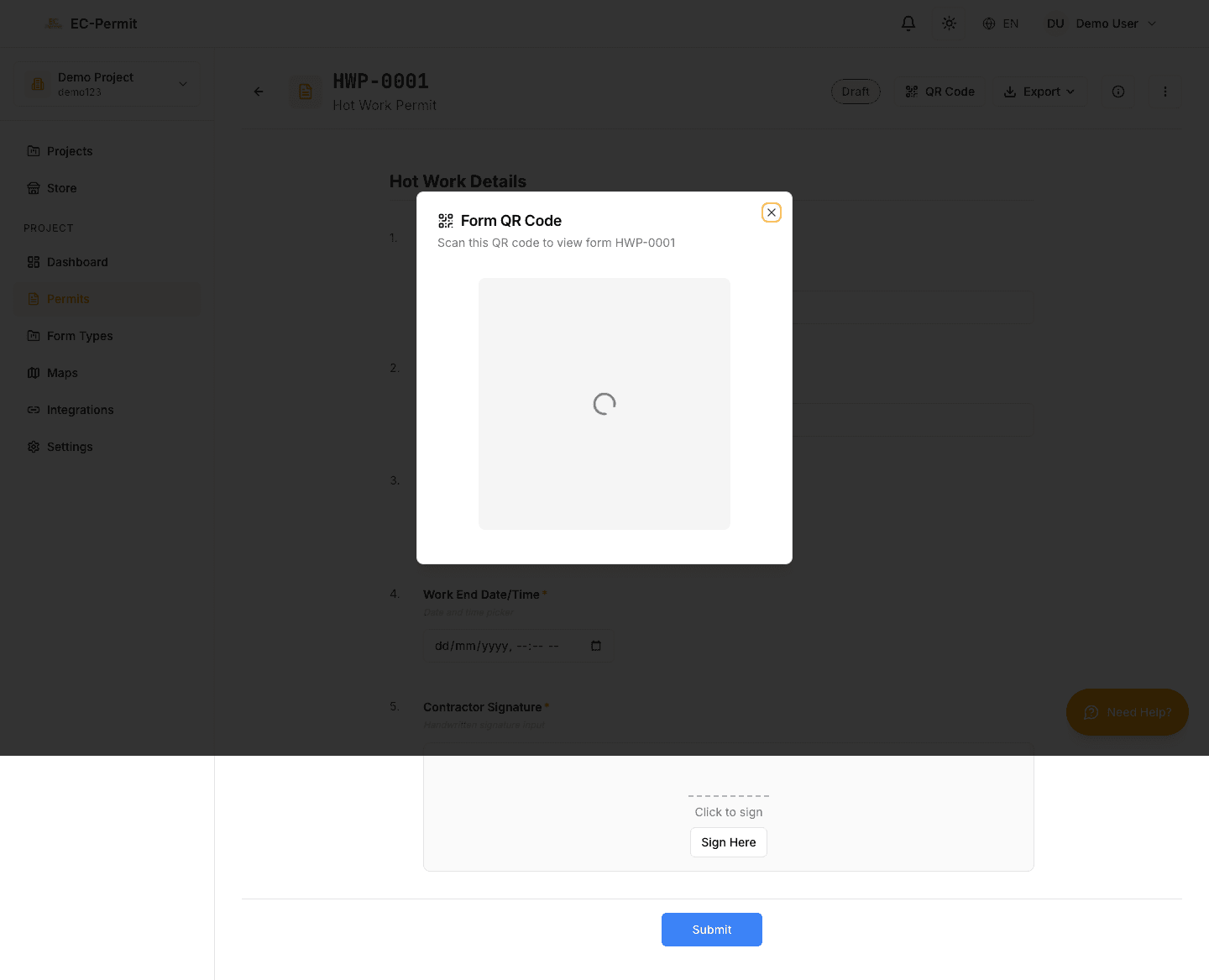
Using QR Codes
QR codes provide quick access to forms on-site. Scan a QR code to instantly open a form on your mobile device without navigating through the app.
Where to Find QR Codes
QR codes appear in several places:
- Exported PDFs: Each PDF includes a QR code linking to the digital form
- Printed Permits: Posted permits have QR codes for verification
- Form Detail Page: Share button includes QR code option
- Form Type Cards: Quick link to create new forms of that type
Scanning QR Codes
To scan a QR code:
- 1Open your phone's camera
Most modern phones can scan QR codes directly from the camera app
- 2Point at the QR code
Hold steady until the code is recognized
- 3Tap the notification
A link preview will appear—tap to open
- 4Sign in if prompted
You may need to log in to access the form
EC-Permit Mobile App
Common Use Cases
Scan the QR code on a posted permit to verify it's still valid and see current status.
Instead of searching through forms, scan a QR code to jump directly to the form you need.
Generate a QR code to share with colleagues who need to view or act on a form.
Public Form QR Codes
Some forms can be configured as "public", allowing anyone to submit without logging in:
- Visitor check-in forms
- Public feedback forms
- Safety observation reports
Public form QR codes can be posted at entry points for quick access.
Public Forms