Docs/General User/Navigating Projects

Navigating Projects

After logging in, you'll see a list of all projects you have access to. Learn how to view, switch between, and manage your projects.

The Projects Page

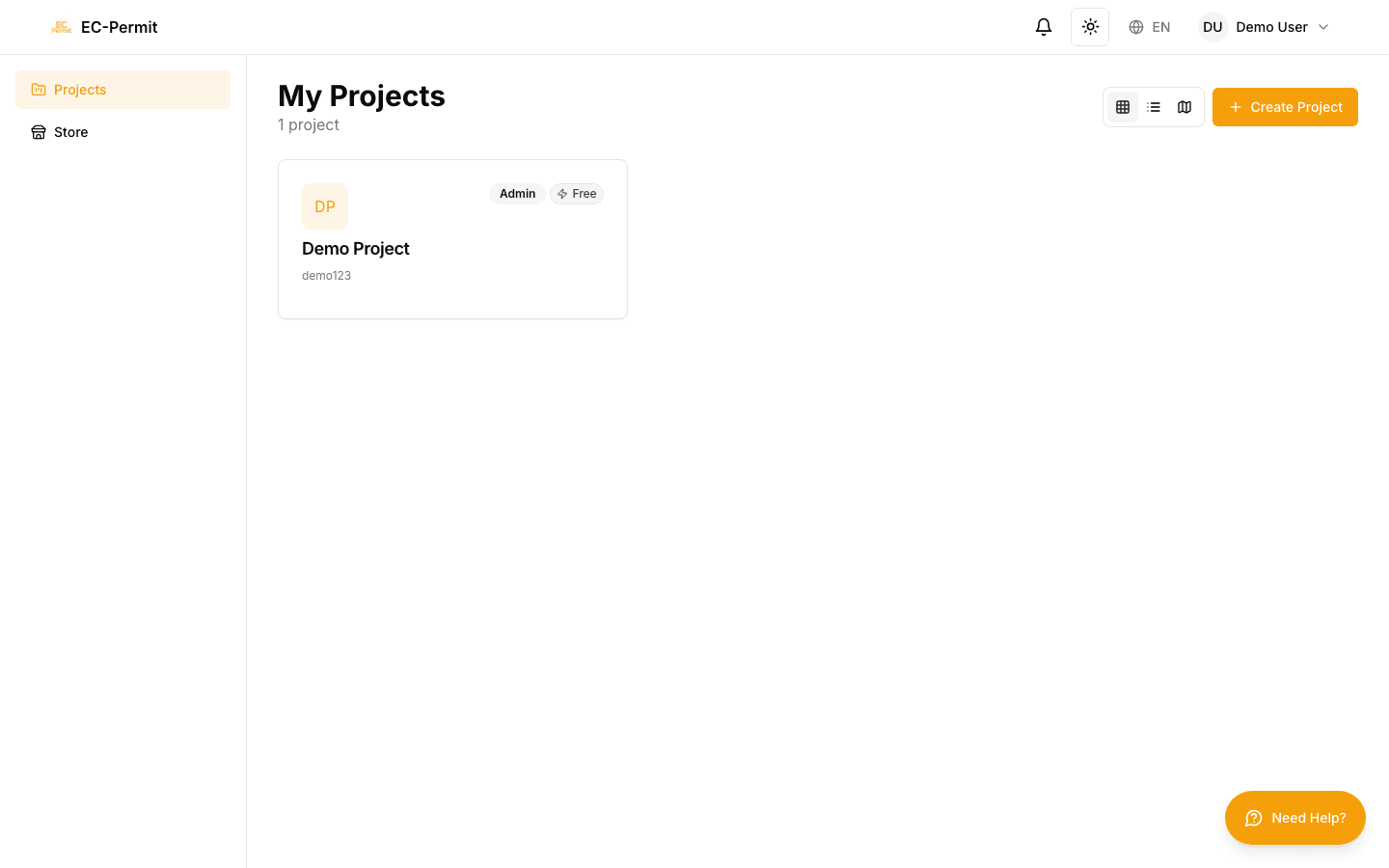
The Projects page is your home base after logging in. It displays all projects you're a member of, showing key information at a glance.

Project Card Information

Each project card shows:

  • Project Logo: Visual identifier (can be customized by admins)
  • Project Name: The full name of the project
  • Project Code: Short identifier (e.g., "BLD-A")
  • Address: Physical location with map pin icon
  • Completion Date: Expected project end date
  • Admin Badge: Shows if you're an admin of this project
  • VIP Badge: Indicates subscription tier

Service Expiry Warning

If a project's service is about to expire, you'll see an orange or red warning indicator. Contact your project admin to renew the subscription.

View Modes

Switch between different view modes using the toggle buttons in the top right:

Grid View

Visual card layout. Best for quickly scanning projects by their logos and names.

List View

Compact list format. Shows more projects on screen with key details in rows.

Map View

Geographic view. See projects on a map based on their addresses.

Opening a Project

To open a project and access its forms:

  1. 1Find the project in your list
  2. 2Click on the project card or list item
  3. 3You'll be taken to the project's Dashboard

Switching Projects

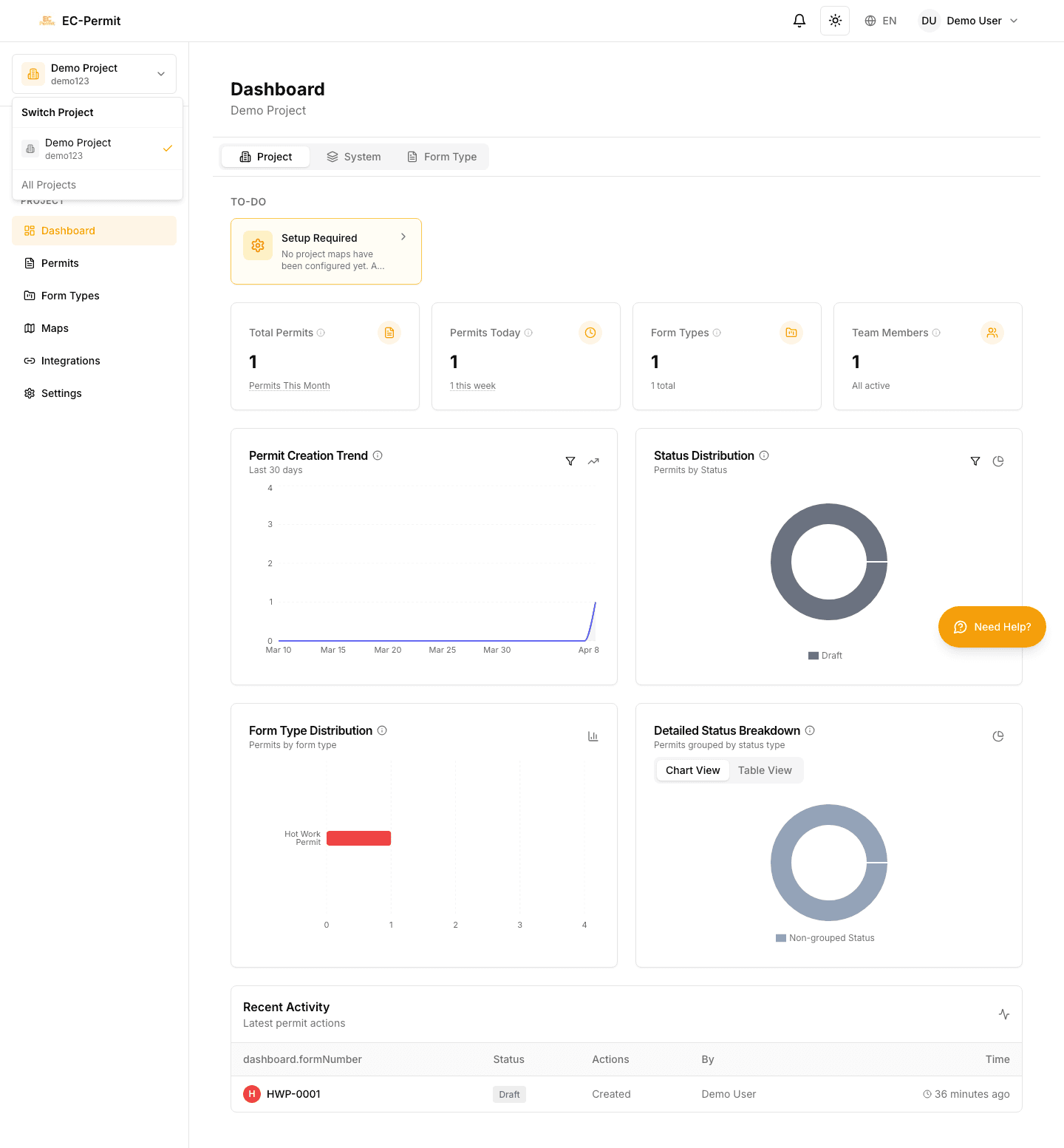
Once inside a project, you can quickly switch to another using the Project Switcher:

  1. 1Look at the top of the sidebar for the current project name
  2. 2Click on the project name to open the dropdown
  3. 3Select another project from the list
You can also return to the Projects page at any time by clicking your name/avatar in the header and selecting "My Projects", or by using the back button from the Dashboard.

Creating a Project

If you have permission to create projects:

  1. 1Click the "Create Project" button
  2. 2Enter the project name (required)
  3. 3Add a project code and address (optional)
  4. 4Click "Create"

You'll automatically become an admin of any project you create.

Archived Projects

Completed or inactive projects may be archived by admins. Archived projects:

  • Appear in a separate "Archived" section at the bottom
  • Are read-only (you can view but not modify forms)
  • Can be unarchived by project admins if needed