Docs/Getting Started/Quick Start

Quick Start Guide

Get up and running with EC-Permit in just a few minutes. This guide will walk you through creating your first project and form.

Before you begin, make sure you have an EC-Permit account. If you don't, sign up here – it's free!

Login to EC-Permit

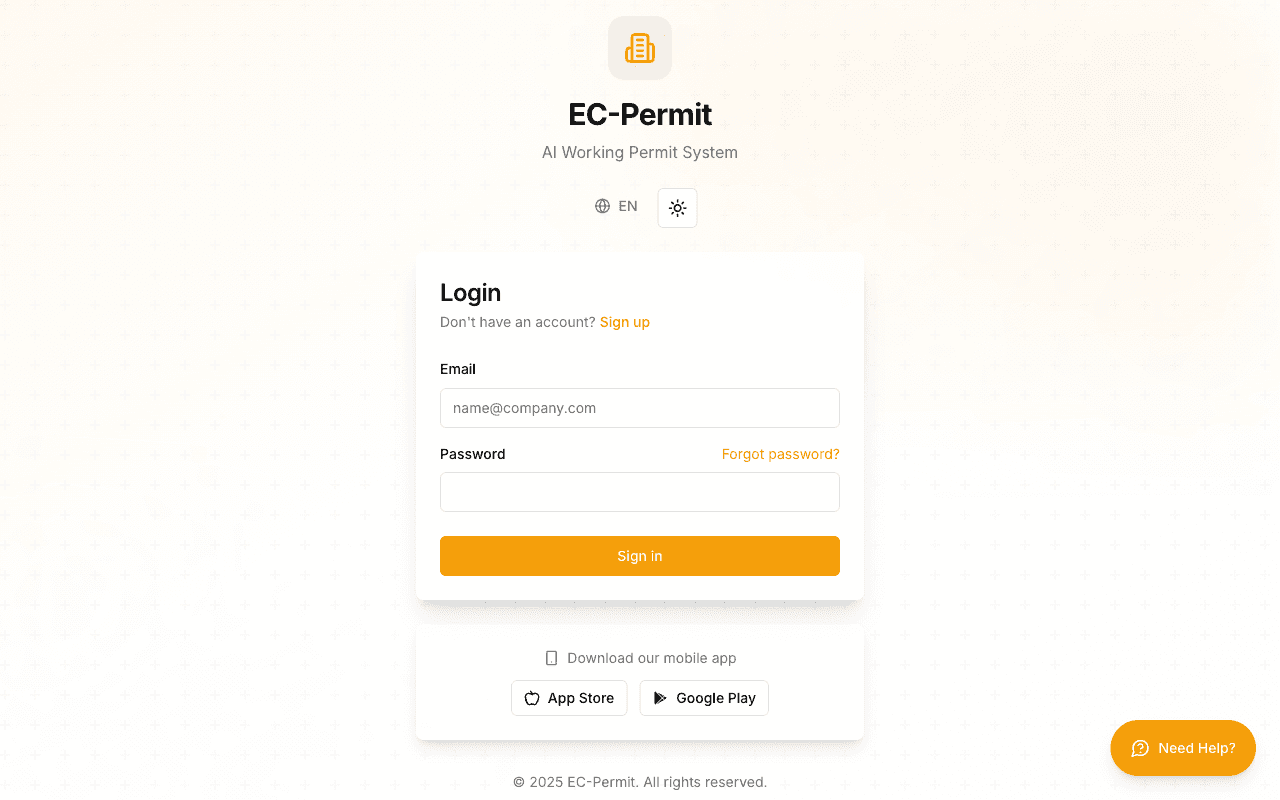
Start by logging into EC-Permit with your email and password.

EC-Permit login page with email and password fields
The EC-Permit login page - enter your credentials to sign in

Step 1: Create Your First Project

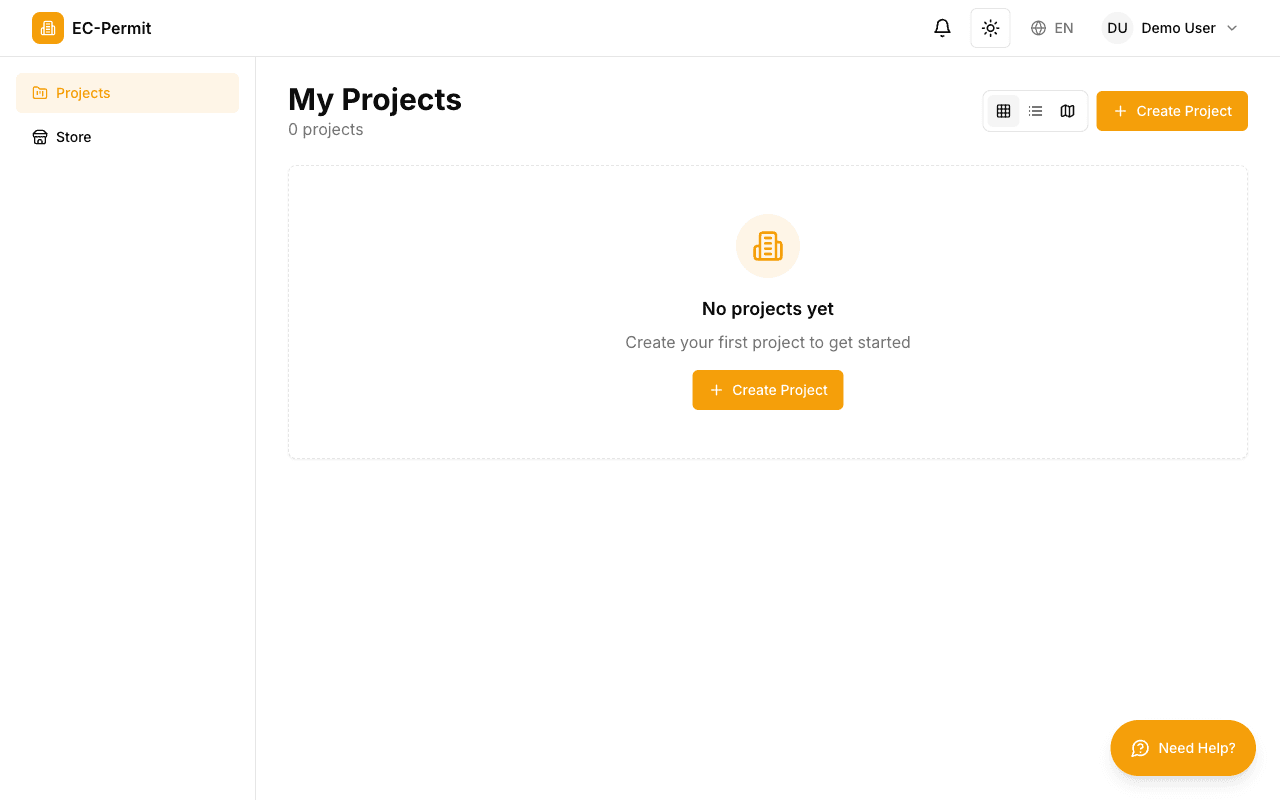
After logging in, you'll see the Projects page. Click Create Project to get started.

Empty projects page with Create Project button
Your Projects page when you first log in - click 'Create Project' to begin

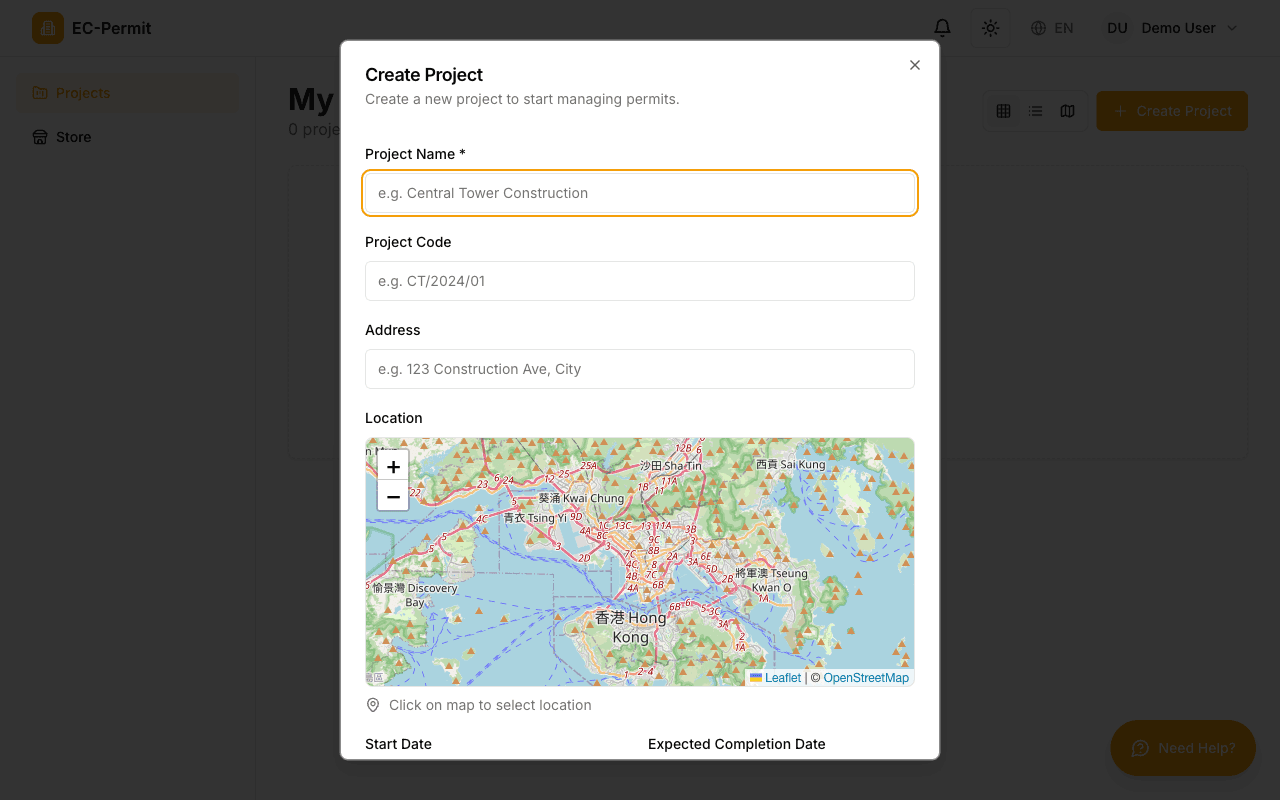
Fill in your project details:

Create Project dialog showing form fields
The Create Project dialog - fill in your project name, code, and location
  • Project Name: A descriptive name (e.g., "Building A Construction")
  • Project Code: A short identifier (e.g., "BLD-A")
  • Address: The project location
  • Location: Click on the map to set the exact location
  • Dates: Start date and expected completion date

Step 2: Create Your First Form Type

Once your project is created, navigate to Form Types in the sidebar.

  1. 1
    Click Create Form Type

    You can create manually or use the AI assistant for quick setup.

  2. 2
    Define Basic Information

    Enter a name (e.g., "Work Permit") and select an icon and color.

  3. 3
    Configure the Workflow

    Add statuses like "Draft", "Pending Approval", and "Approved".

  4. 4
    Add Questions

    Add the fields you want users to fill out.

  5. 5
    Publish

    Click Publish to make the form type available.

Pro Tip

Use the AI Form Creator to describe what you need in plain English, and let AI build the form type for you!

Step 3: Create Your First Form

With a form type published, you can now create forms:

  1. Go to Forms in the sidebar
  2. Select your form type
  3. Click Create Form
  4. Fill in the required fields
  5. Click Submit or the appropriate action

Next Steps

Now that you've created your first form, explore more features: