Taking Actions on Forms

Actions move forms through the workflow. Learn how to submit, approve, reject, and perform other actions based on your role and permissions.

Available Actions

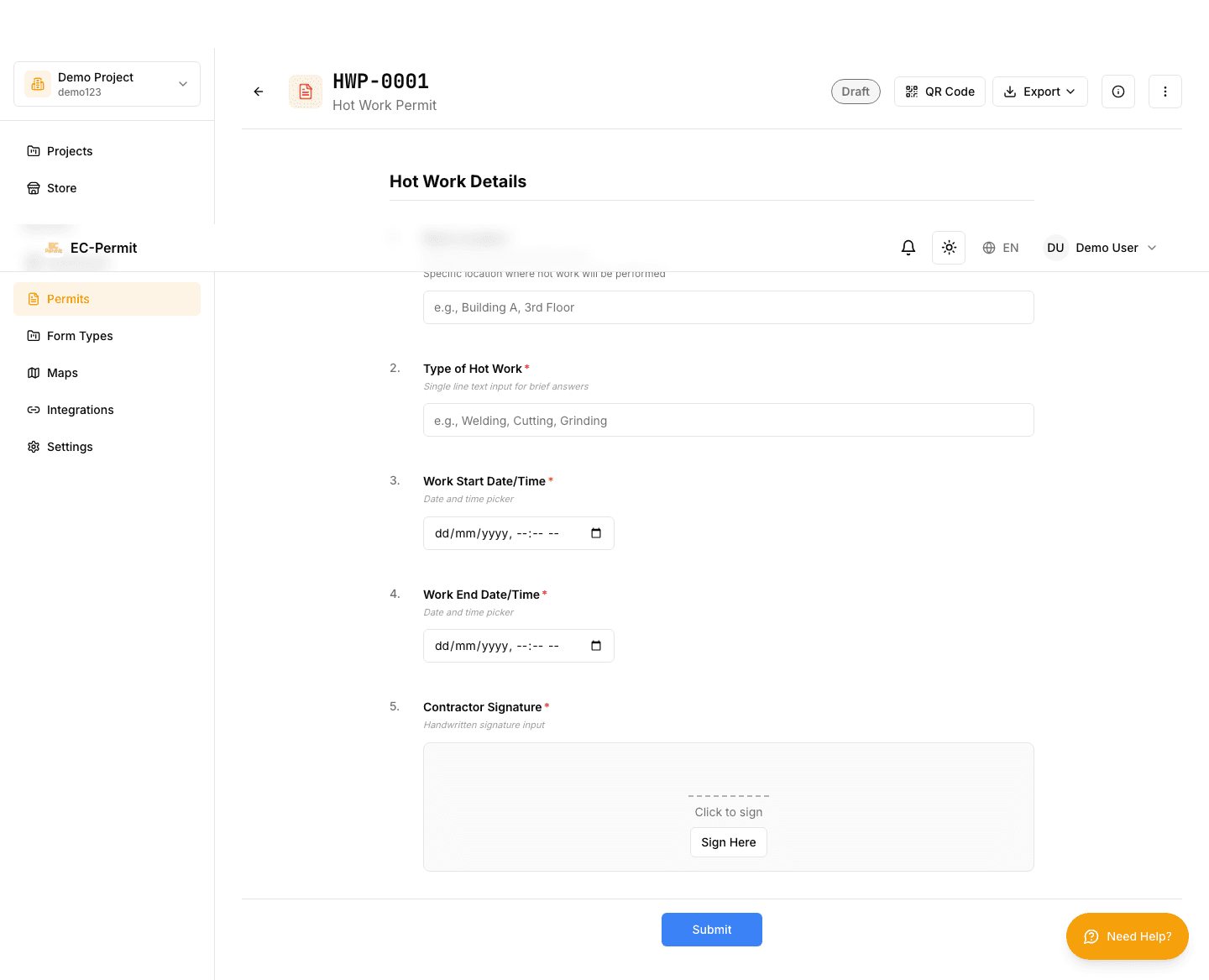
When viewing a form, you'll see action buttons at the bottom of the page. The available actions depend on:

  • The form's current status
  • Your role and permissions in the project
  • How the form type's workflow was configured

Common Actions

Submit

Send the form for review or approval

Submitting a form moves it from "Draft" to the next status (usually "Pending Review" or "Pending Approval"). Once submitted, the form is visible to reviewers/approvers.

Approve

Approve the form to advance the workflow

Approving moves the form to the next status. Depending on the workflow, this might be final approval or just one step in a multi-level approval chain.

Reject

Send the form back with feedback

Rejecting a form typically sends it back to the initiator for corrections. You'll usually be asked to provide a reason/comment explaining what needs to be fixed.

Return / Request Changes

Send back for revisions without rejecting

Similar to reject, but indicates the form needs minor updates rather than being fundamentally flawed. The exact name depends on how the workflow was configured.

Performing an Action

To take an action on a form:

  1. 1
    Open the form

    Navigate to the form you want to act on

  2. 2
    Review the form content

    Make sure all information is correct before taking action

  3. 3
    Click the action button

    Located at the bottom of the form view

  4. 4
    Confirm and add comment (if required)

    A dialog may appear asking for confirmation or a comment

  5. 5
    Action completed

    The form status updates and notifications are sent

Action Comments

Many actions allow (or require) a comment. Comments are useful for:

  • Explaining why you're rejecting a form
  • Adding notes for the next approver
  • Recording observations or conditions
  • Creating an audit trail

Comment Visibility

Comments are visible to anyone who can view the form. They become part of the form's history and cannot be edited or deleted after submission.

Action Confirmation

When you click an action button, you'll see a confirmation dialog:

Confirm Action

Are you sure you want to Approve this form? This will move it to "Approved" status.

Action Notifications

When you take an action, notifications are automatically sent to relevant users:

  • Submit: Notifies approvers that a form is waiting
  • Approve: Notifies the initiator (and next approver if applicable)
  • Reject: Notifies the initiator to make corrections

Actions Cannot Be Undone

Once you take an action, it cannot be reversed. For example, if you approve a form, you cannot un-approve it. If a mistake was made, the form would need to go through the rejection/revision process.

No Actions Available?

If you don't see any action buttons, it could mean:

  • The form is not in a status that requires your action
  • You don't have permission to take actions on this form type
  • The form has reached a final status (e.g., Completed, Cancelled)
  • Another user needs to act first (workflow sequence)