Docs/Project Admin/Managing Users

Managing Users

Control who has access to your project and what they can do. Learn how to invite team members, assign roles, and manage permissions.

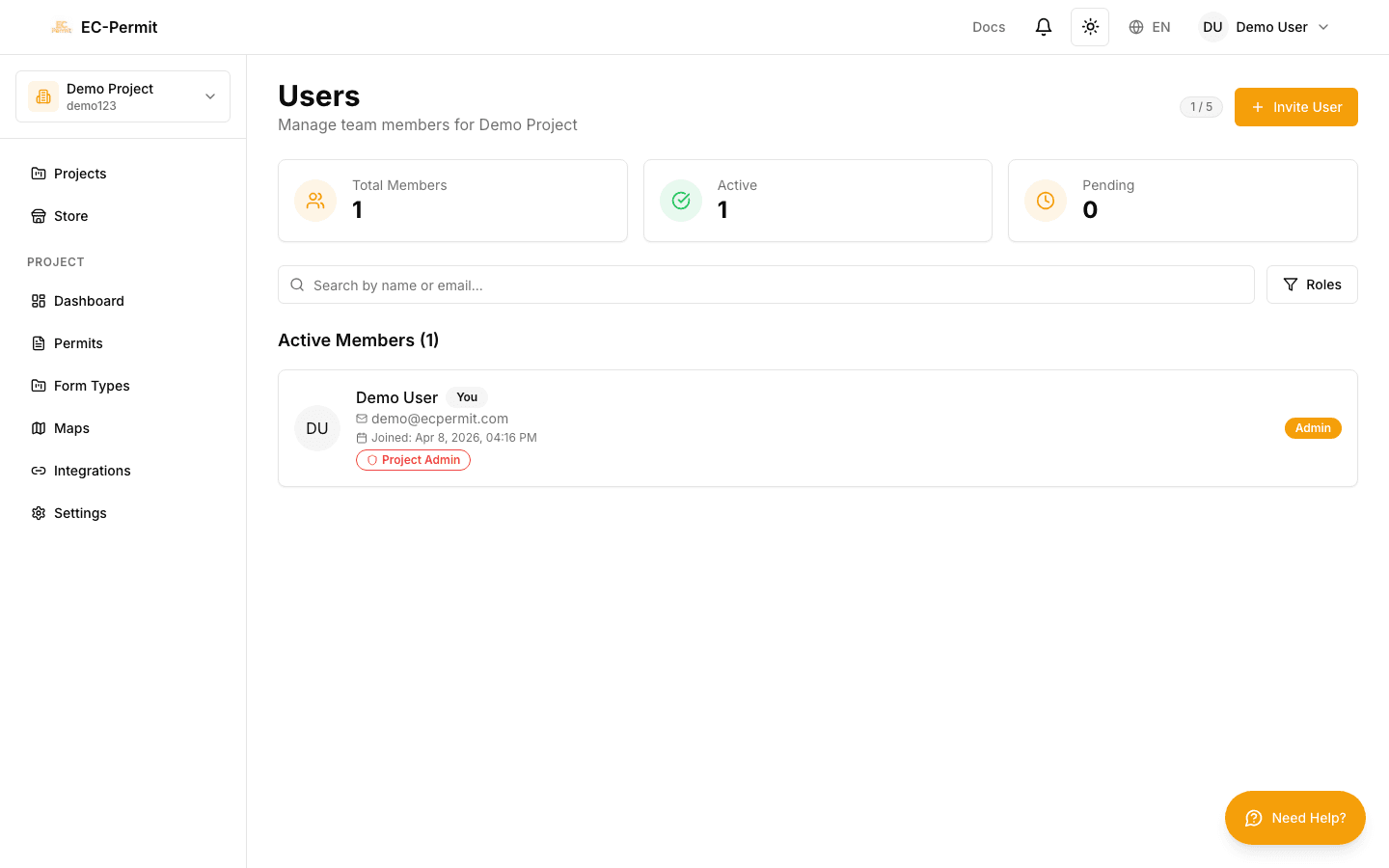
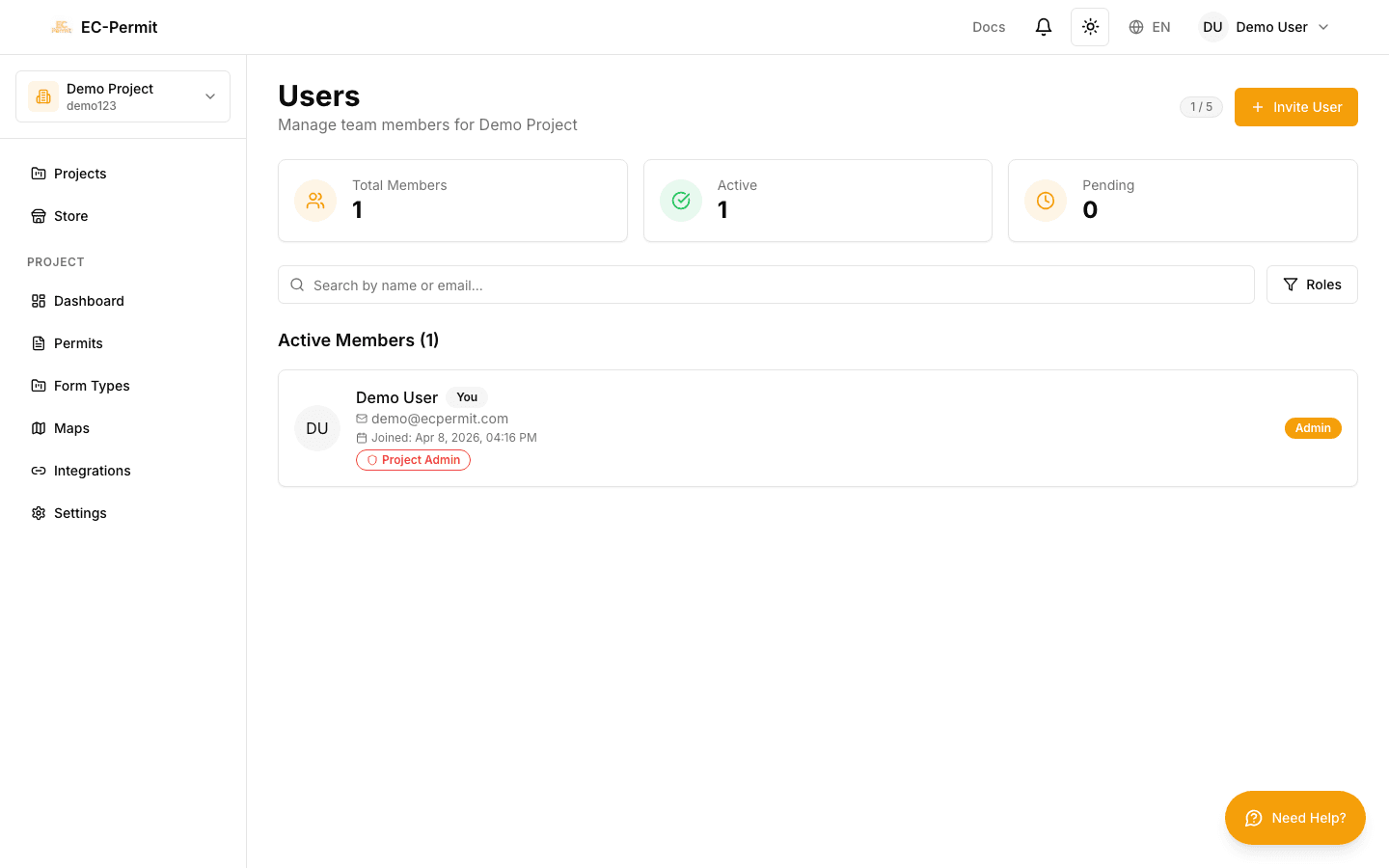
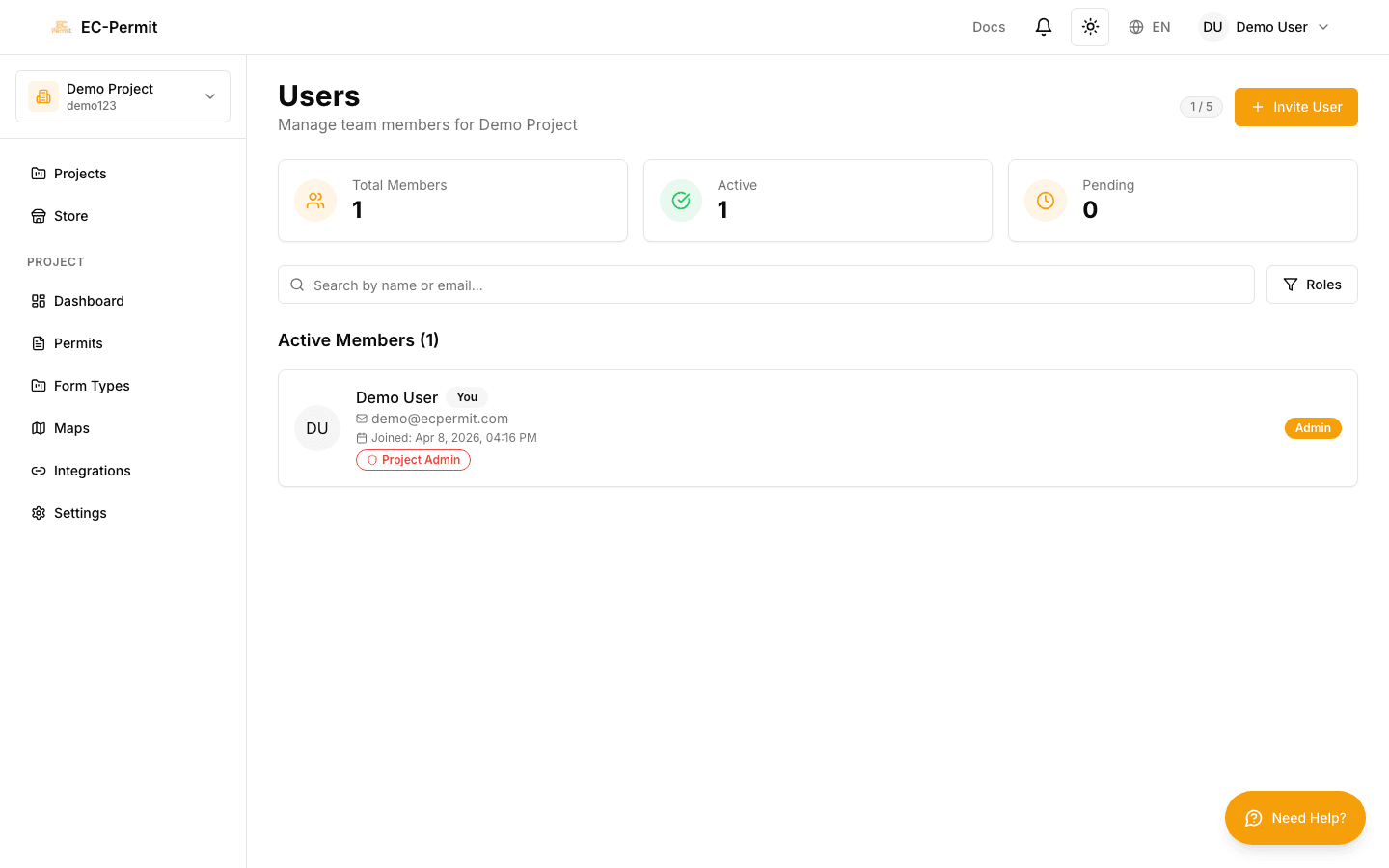
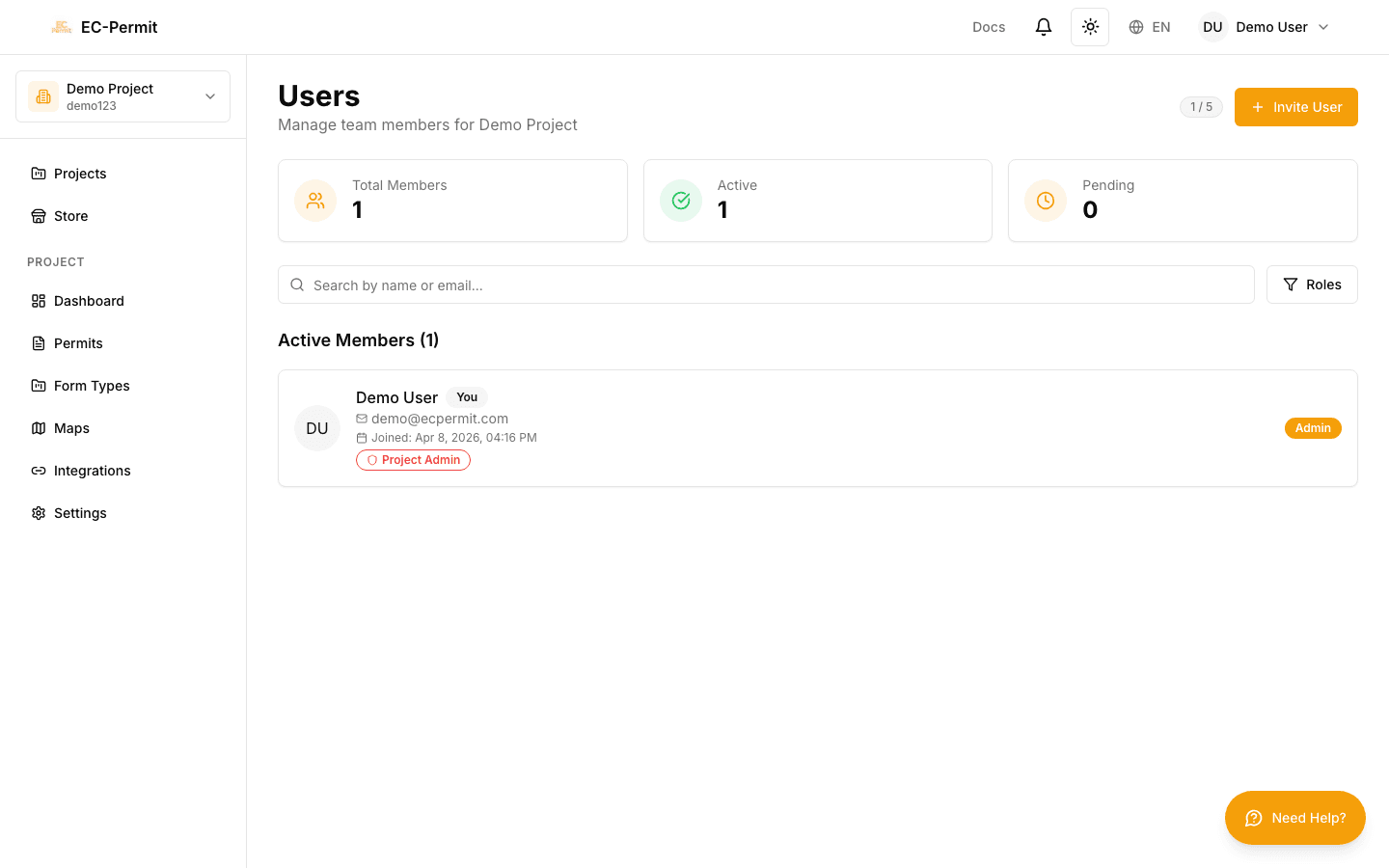
The Users Page

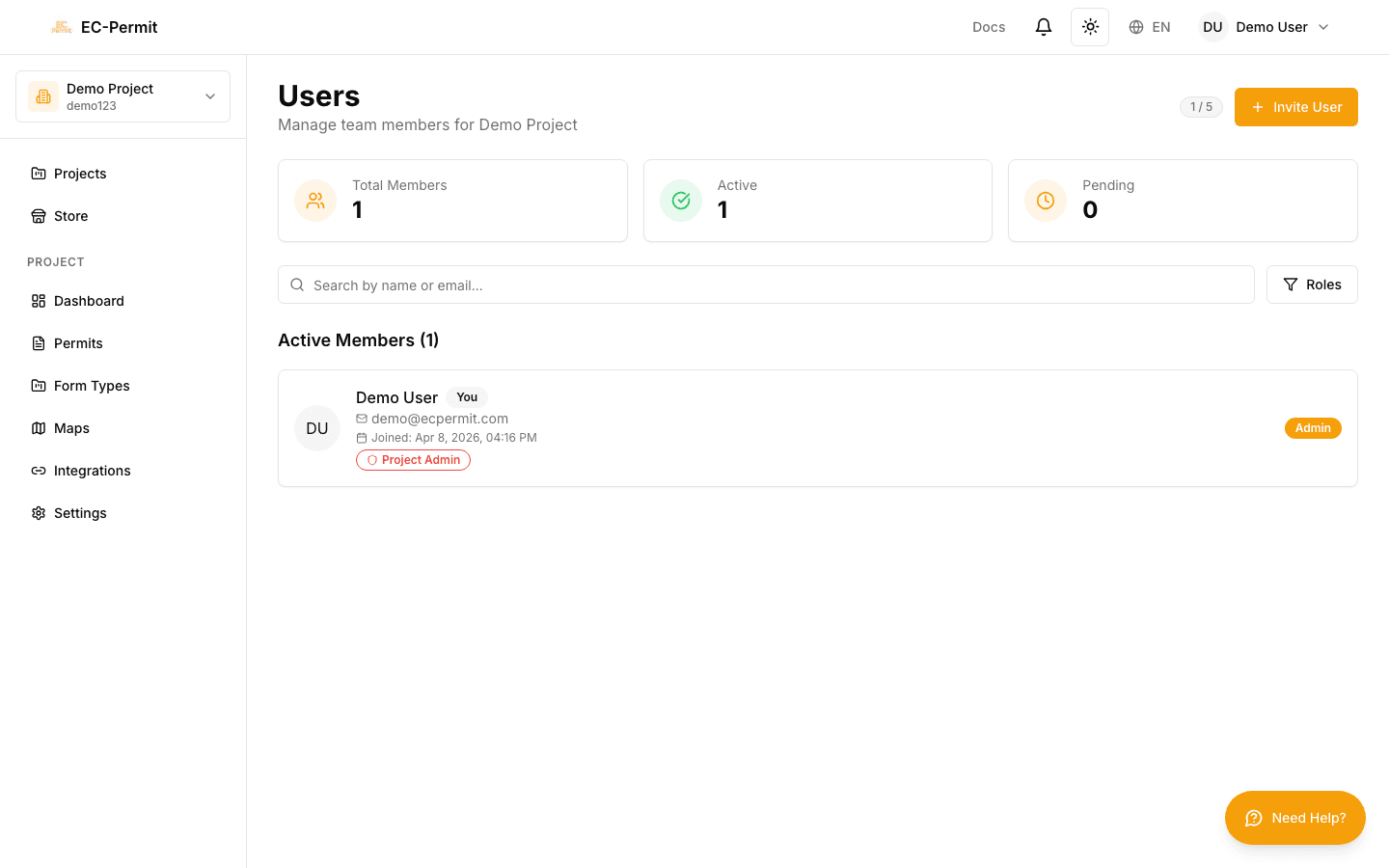
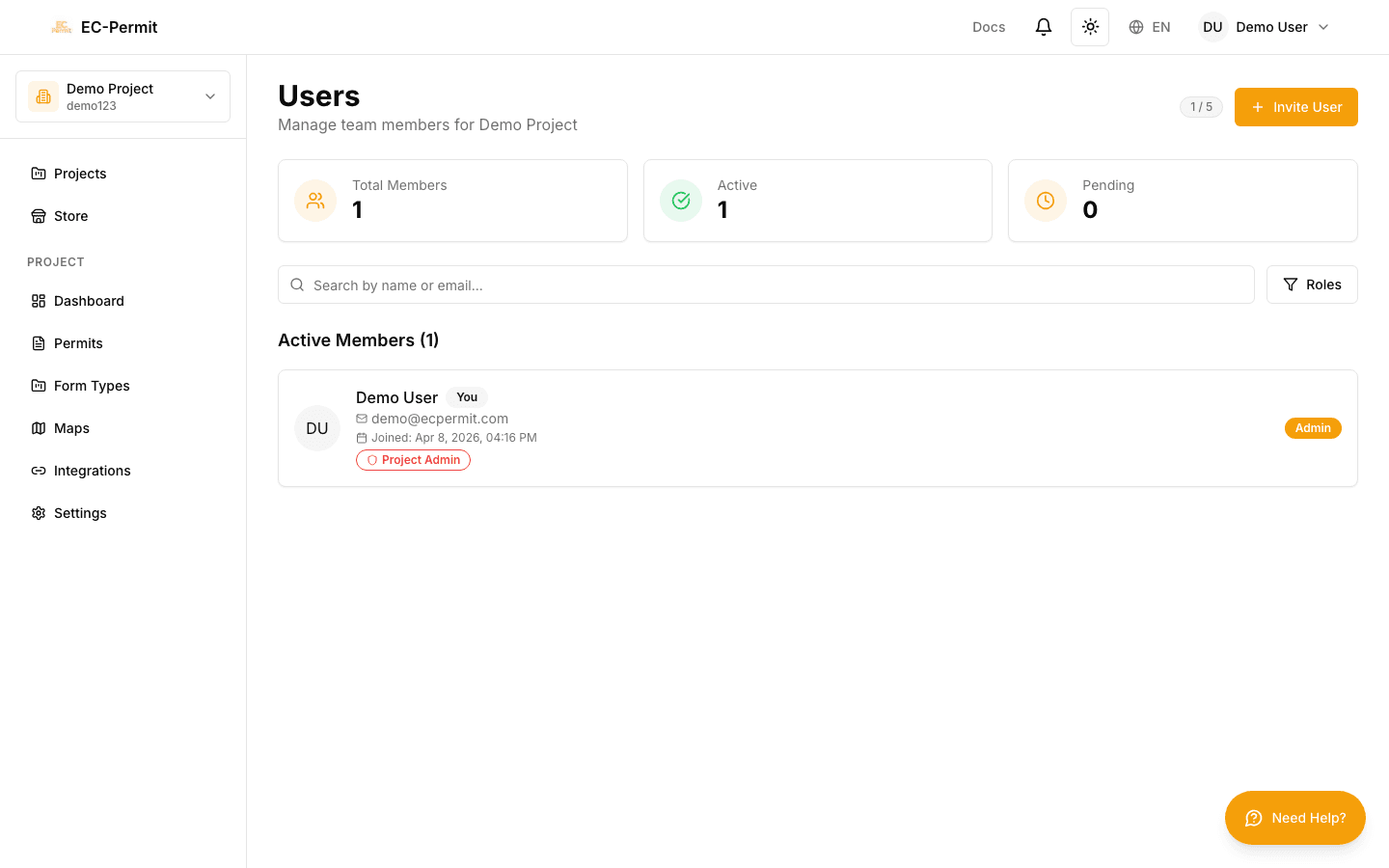
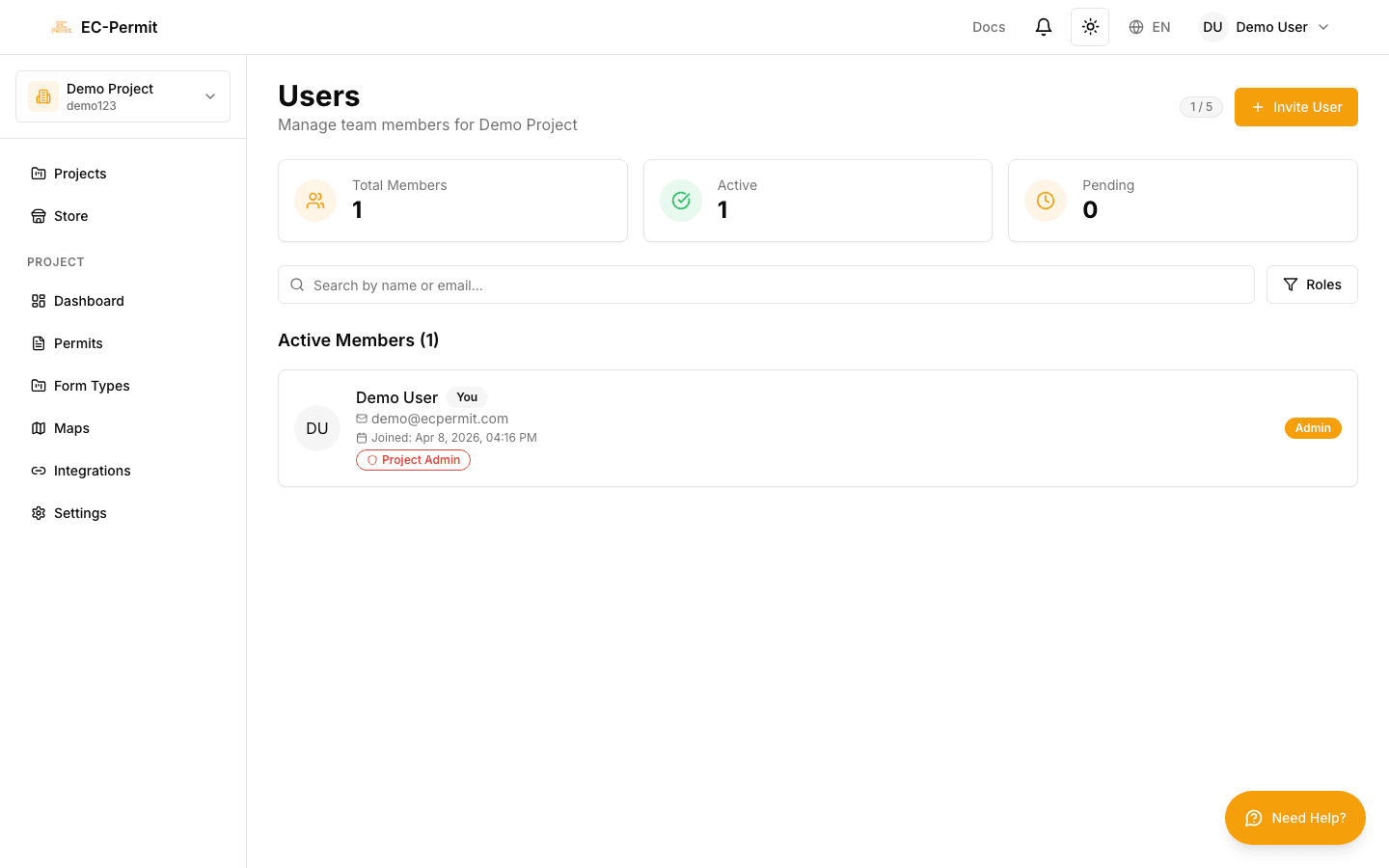
Access user management by clicking Users in the sidebar. This page shows:

  • All current project members
  • Their roles and permissions
  • Pending invitations
  • User status (active/inactive)

Inviting Users

To add a new team member to your project:

  1. 1
    Click "Invite User"

    Opens the invitation dialog

  2. 2
    Enter their email address

    The email where they'll receive the invitation

  3. 3
    Select a role

    Choose what permissions they'll have

  4. 4
    Send the invitation

    They'll receive an email with a link to join

Invitation Expiry

Invitations expire after 7 days. If someone hasn't accepted, you can resend the invitation from the pending invitations list.

Assigning Roles

Each user must have a role that determines their permissions:

Admin

Full access to all features including user management, form type design, and project settings. Can do everything.

Manager

Can approve/reject forms, view reports, and manage day-to-day operations. Cannot modify form types or project settings.

User

Can create and submit forms. Limited to basic operations. Ideal for field workers and general staff.

Viewer

Read-only access. Can view forms but cannot create, edit, or take actions. Useful for auditors or stakeholders.

Custom Roles

Need more specific permissions? You can create custom roles with exactly the permissions you need.

Changing User Roles

To change a user's role:

  1. 1Find the user in the users list
  2. 2Click the role dropdown or edit button
  3. 3Select the new role
  4. 4Confirm the change

Role changes take effect immediately. The user's permissions update without needing to log out.

Removing Users

To remove a user from your project:

  1. 1Find the user in the list
  2. 2Click the remove/delete button
  3. 3Confirm the removal

Data Preservation

Removing a user doesn't delete their data. Forms they created remain in the system, and history shows their actions. They simply lose access to the project.

Bulk Operations

For managing many users:

  • Bulk invite: Enter multiple email addresses (one per line)
  • Export user list: Download a CSV of all users and their roles
  • Search/filter: Find users by name, email, or role

User Limits

The number of users you can invite depends on your subscription:

10
Free Tier
Unlimited
VIP
Unlimited
Enterprise