Docs/General User/Notifications & To-Do

Notifications & To-Do List

Stay informed about form updates and keep track of pending tasks. EC-Permit's notification system ensures you never miss an important action.

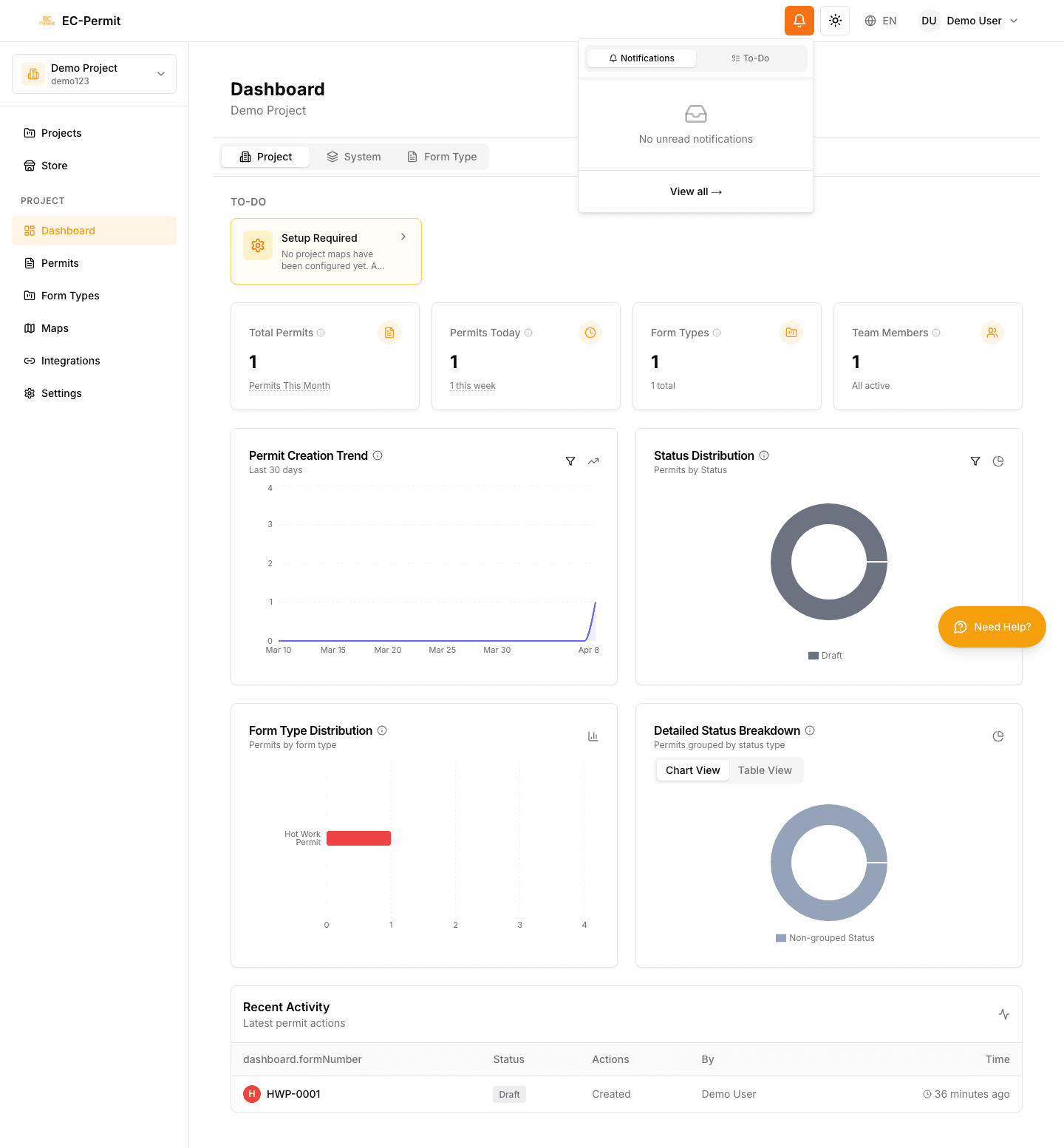
The Notification Bell

The bell icon in the header is your central hub for notifications:

  • Red badge: Shows count of unread notifications + pending to-do items
  • Click to open: Opens a panel with two tabs
  • Always visible: Available from any page in the app

To-Do List

The To-Do tab shows forms waiting for your action. These are items where you need to do something—review, approve, fill out, etc.

To-Do Item Contains:

  • Form number and form type
  • Current status (why it needs your attention)
  • Time since assigned to you
  • Quick action buttons when applicable

Click on any to-do item to open the form directly and take action.

Priority Order

To-do items are sorted by urgency—items waiting longest appear first. Try to address older items before newer ones.

Notifications

The Notifications tab shows updates about forms you're involved with, even if no action is needed from you.

Types of Notifications

Form Submitted

Someone submitted a form you created or are watching

Form Approved

A form you submitted or reviewed has been approved

Form Rejected

A form you submitted needs corrections

Comment Added

Someone added a comment to a form you're involved with

Form Updated

Changes were made to a form you're watching

Managing Notifications

Mark as Read

  • Click on a notification to mark it as read and view details
  • Use "Mark all as read" to clear all unread notifications

Complete a To-Do

To-do items are automatically removed when you take the required action on the form. There's no need to manually check them off.

Delete Notifications

You can delete individual notifications you no longer need. Note: This only affects your view—it doesn't affect the actual form.

Email Notifications

In addition to in-app notifications, EC-Permit can send email notifications for important events:

  • Forms assigned to you for action
  • Your submitted forms being approved or rejected
  • Daily digest of pending to-do items (if enabled)

Email Preferences

Email notification settings are managed by your project admin. If you're receiving too many (or too few) emails, ask your admin to adjust the settings.

Best Practices

Check regularly

Make it a habit to check your notifications at the start and end of each day. This ensures nothing falls through the cracks.

Act promptly on to-dos

To-do items often block other people's work. Try to address them within 24 hours to keep workflows moving smoothly.

Keep your inbox clean

Delete notifications you've addressed or no longer need. A clean notification panel helps you focus on what matters.