Creating a Form Type
This guide walks you through creating a new form type from scratch. You'll define the basic info, add questions, configure the workflow, and publish.
Alternative: AI Creator
Step 1: Basic Information
Start by clicking "Create Form Type" on the Form Types page.
Enter the following:
- Name (required)
A descriptive name like "Hot Work Permit" or "Daily Safety Checklist"
- Code (optional)
Short identifier for form numbers, e.g., "HWP" creates forms like "HWP-001"
- Description (optional)
Brief explanation of when this form type should be used
Step 2: Appearance
Choose visual elements to help users identify this form type:
- Icon
Select from hundreds of icons to represent this form type
- Color
Pick a color that will appear on cards and badges
Step 3: Add Questions
Define what information the form will collect:
- 1Click "Add Question"
Opens the question editor
- 2Choose the question type
Text, number, date, file upload, signature, etc.
- 3Configure the question
Set label, placeholder, required status, validation rules
- 4Set visibility/edit permissions
Control who sees/edits this question at each status
- 5Repeat for each question
Drag to reorder questions as needed
See Question Types for details on each type available.
Step 4: Configure Workflow
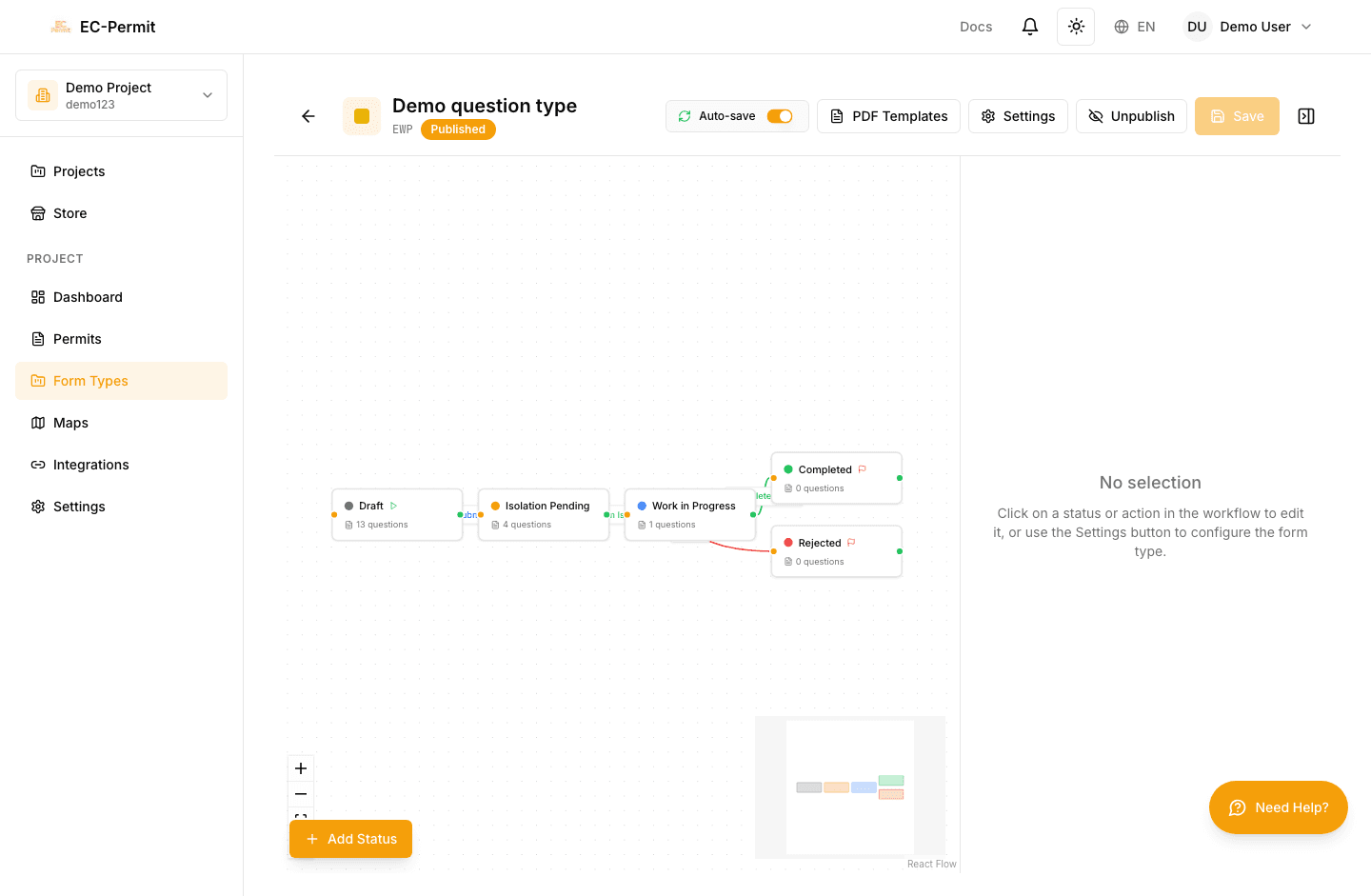
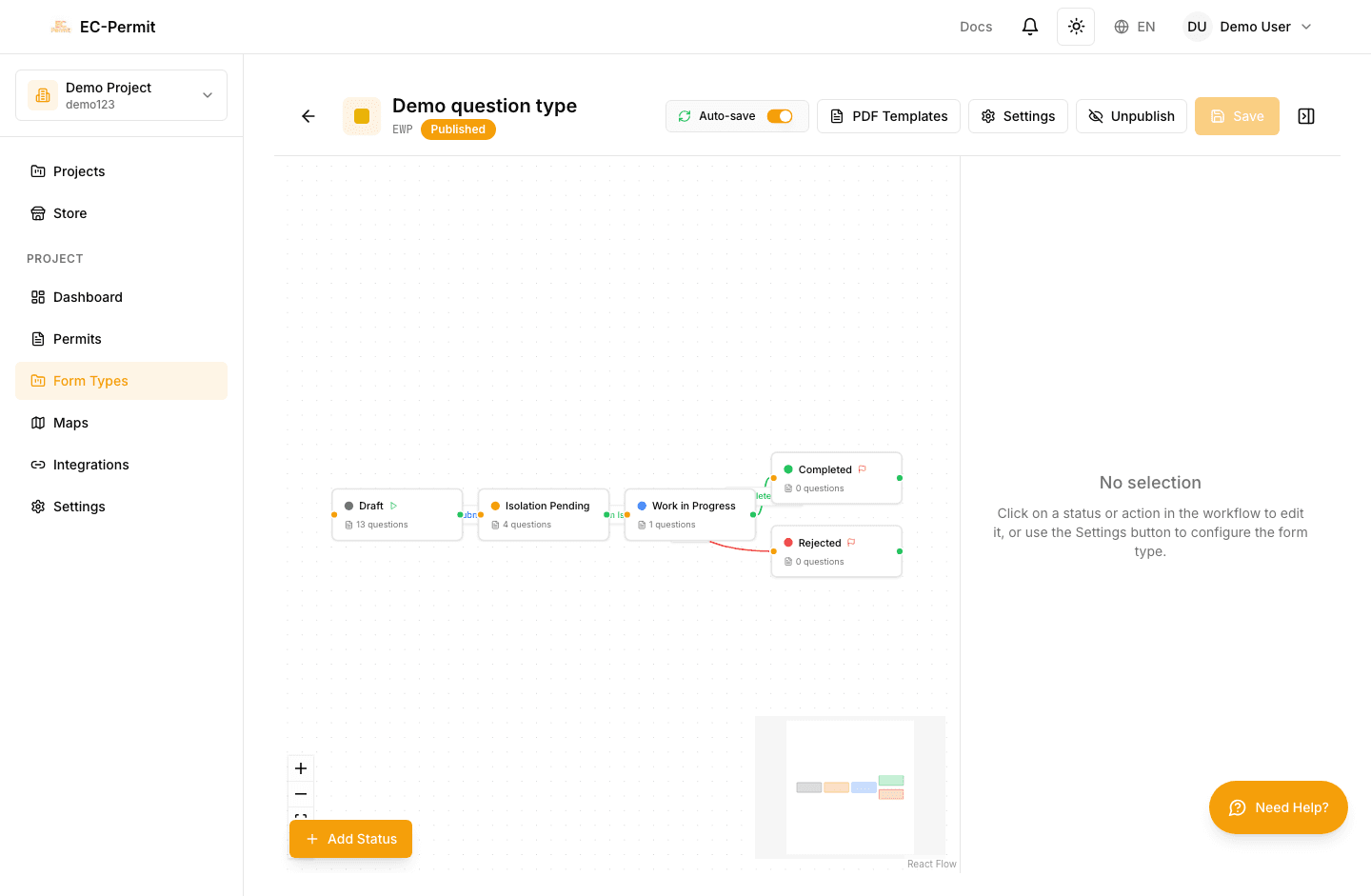
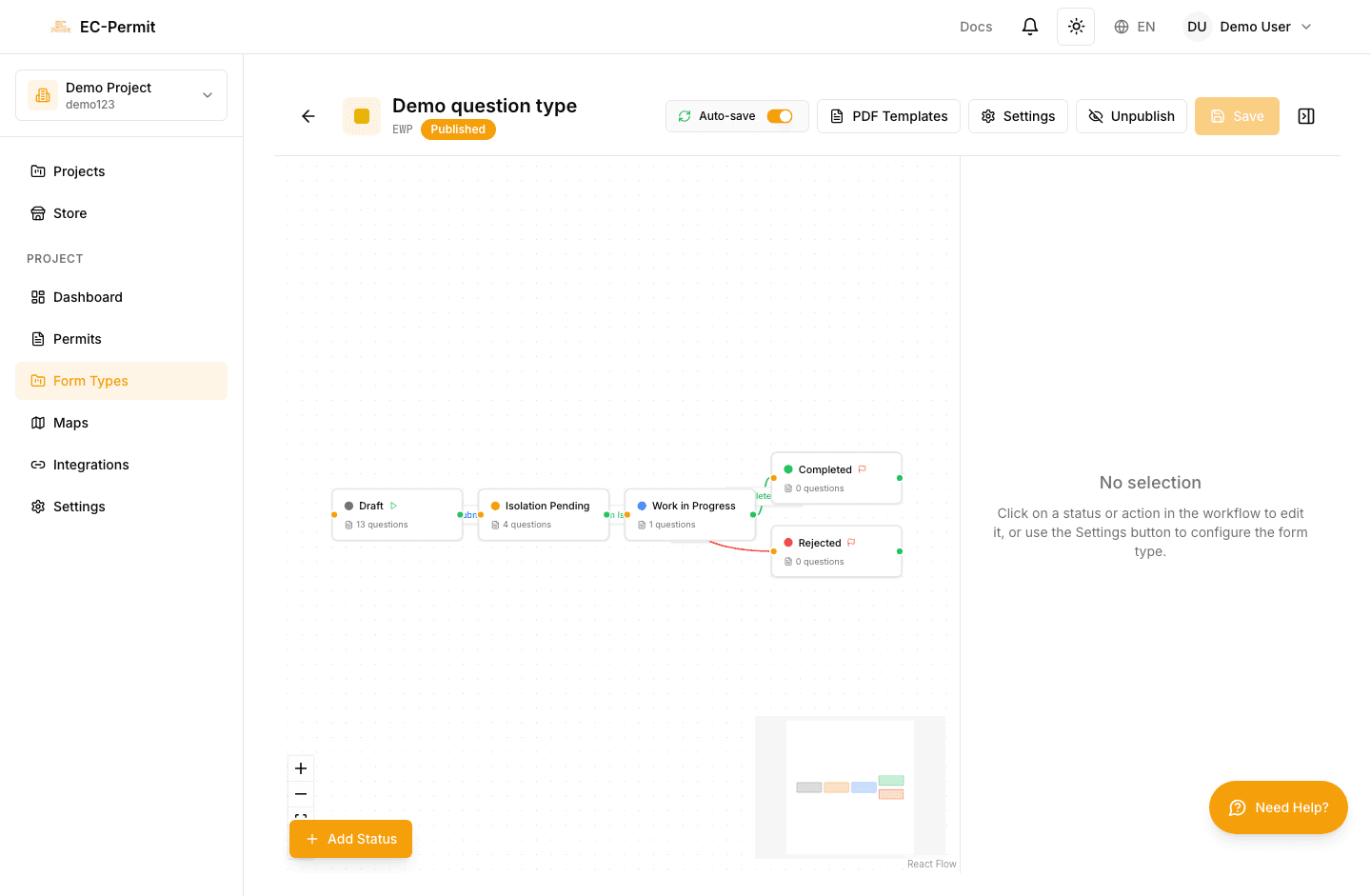
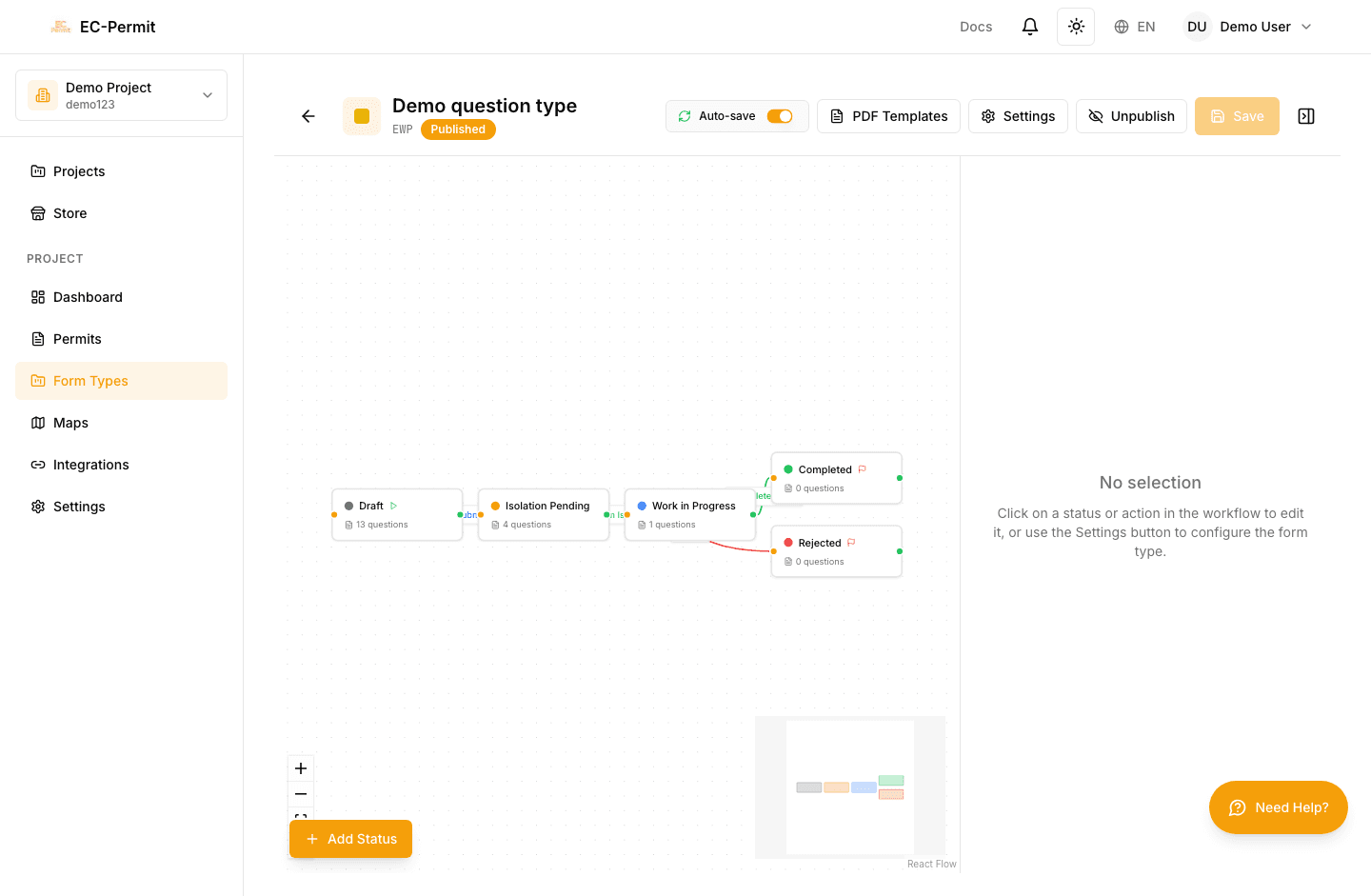
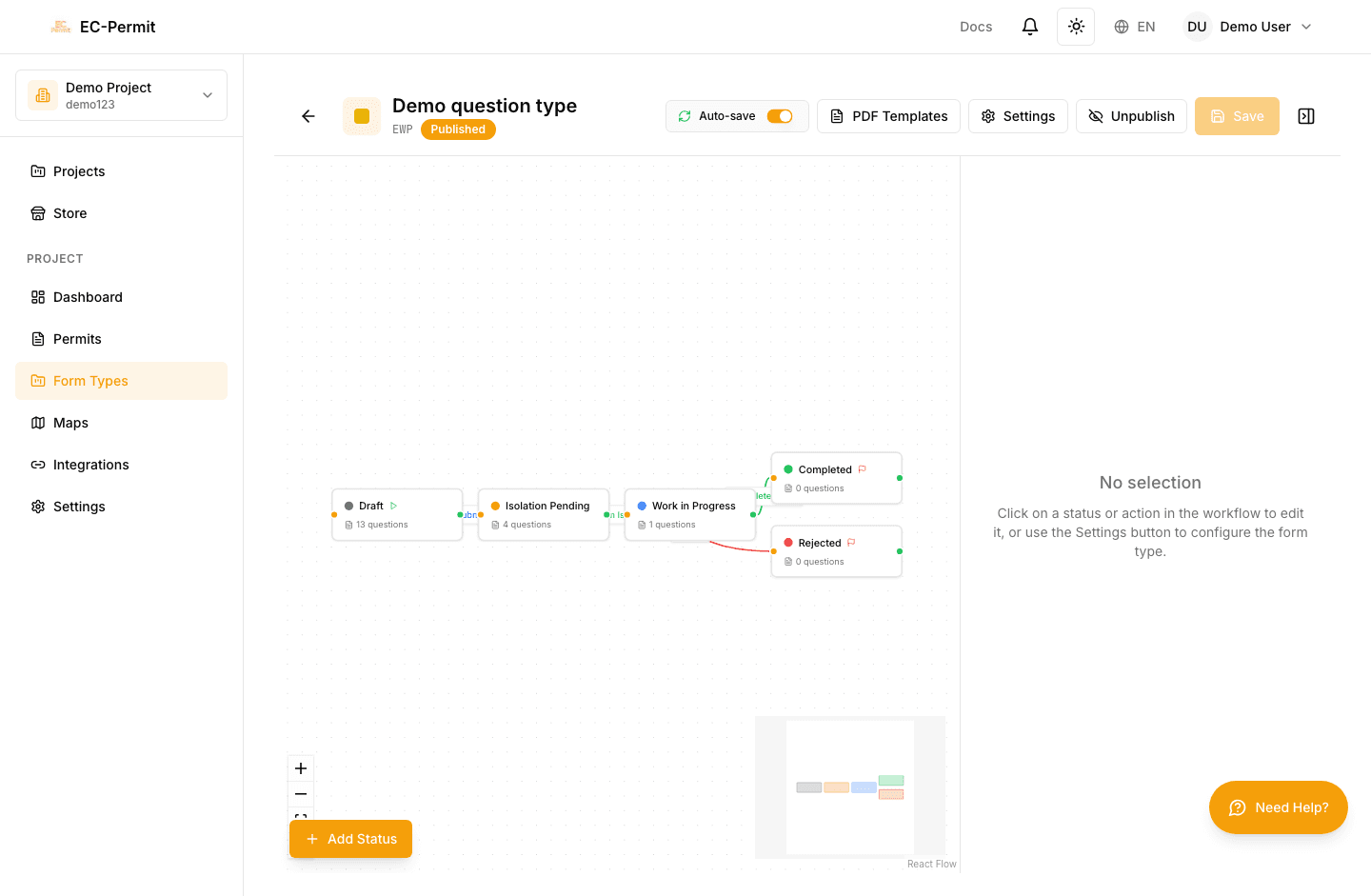
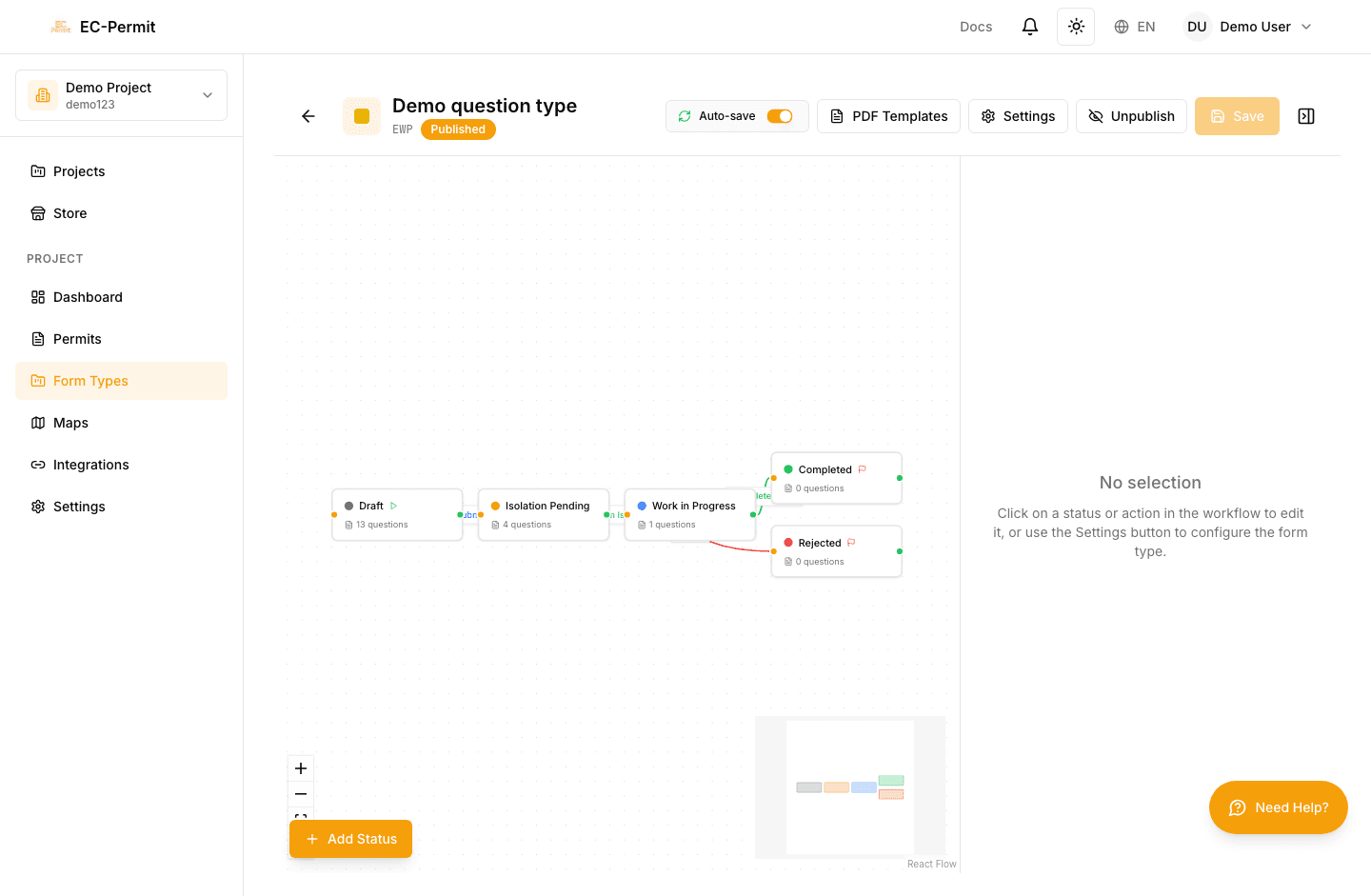
Design the approval process using the visual workflow editor:
Workflow Elements:
- Statuses
The states a form can be in (Draft, Pending Approval, Approved, etc.)
- Actions
Transitions between statuses (Submit, Approve, Reject, etc.)
- Initial Status
Where new forms start (usually "Draft")
- Final Statuses
End states with no further actions (Approved, Cancelled, etc.)
See Workflow Editor for detailed instructions on workflow design.
Step 5: Review and Publish
Before publishing, review your form type:
Checklist:
- ✓ All essential questions are added
- ✓ Required fields are marked correctly
- ✓ Workflow has at least one initial status and one final status
- ✓ Actions have appropriate permissions set
- ✓ Question visibility is configured for each status
When ready, click "Publish". The form type becomes available immediately for creating forms.
Testing First
After Publishing
Once published, you can still:
- Add new questions (existing forms won't have answers for them)
- Edit question labels and descriptions
- Add new statuses and actions
- Modify permissions
Be careful when deleting questions or changing workflows, as this affects existing forms.