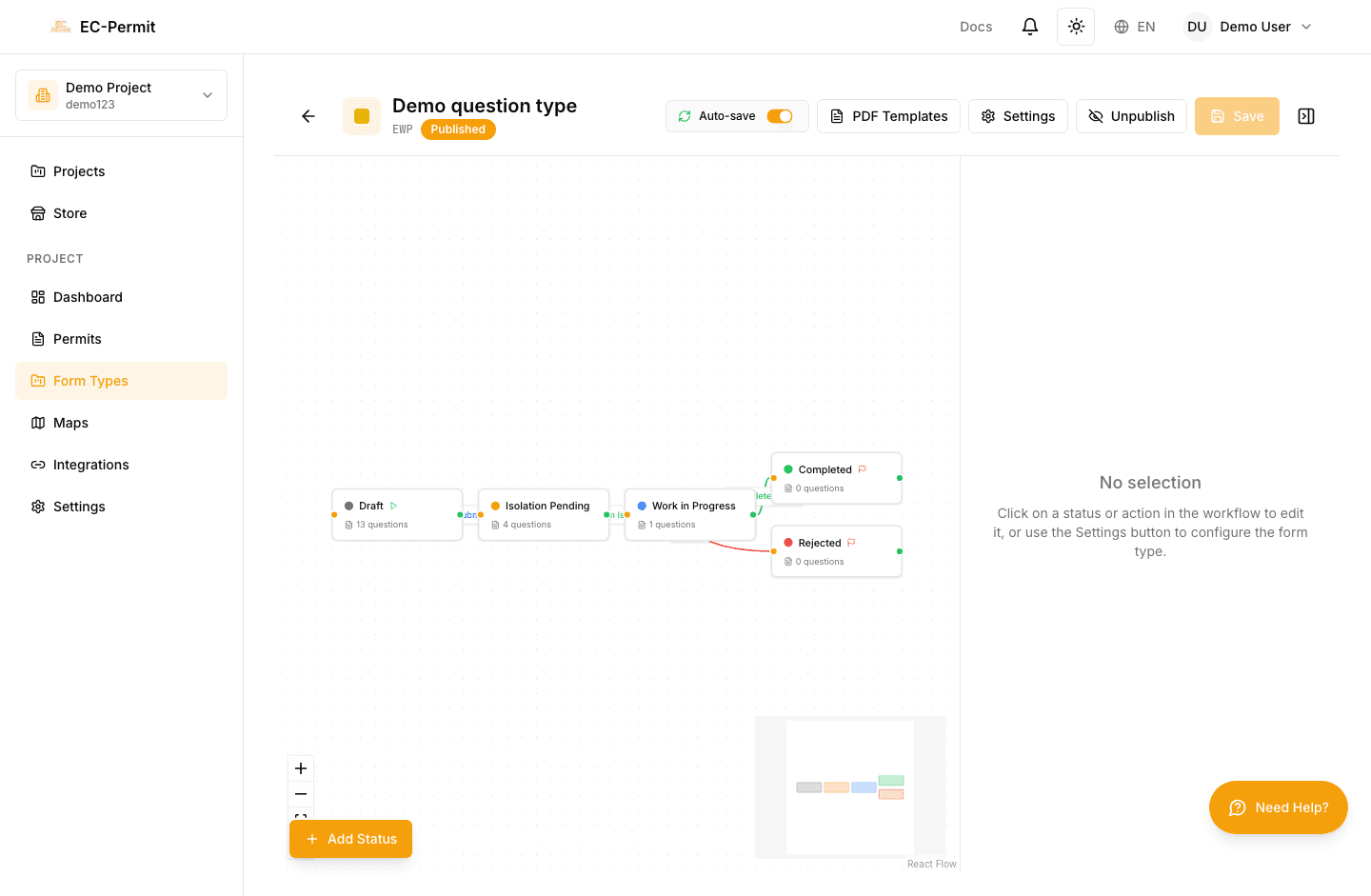
Workflow Editor
Design approval workflows visually using the workflow editor. Define statuses, actions, and how forms move through your approval process.
Understanding Workflows
A workflow consists of two main elements:
The states a form can be in (e.g., Draft, Pending Approval, Approved)
Transitions that move forms between statuses (e.g., Submit, Approve, Reject)
The Visual Editor
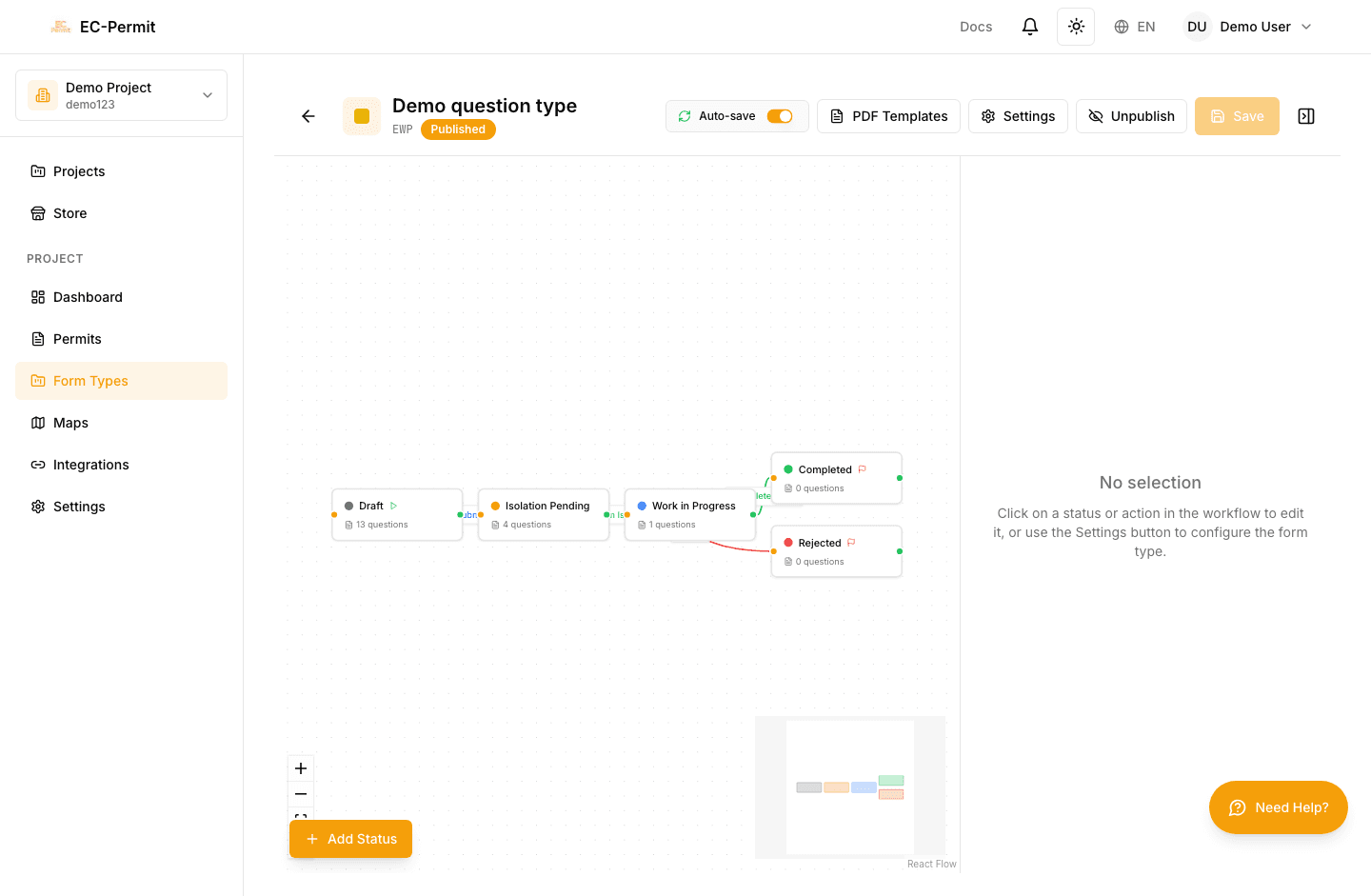
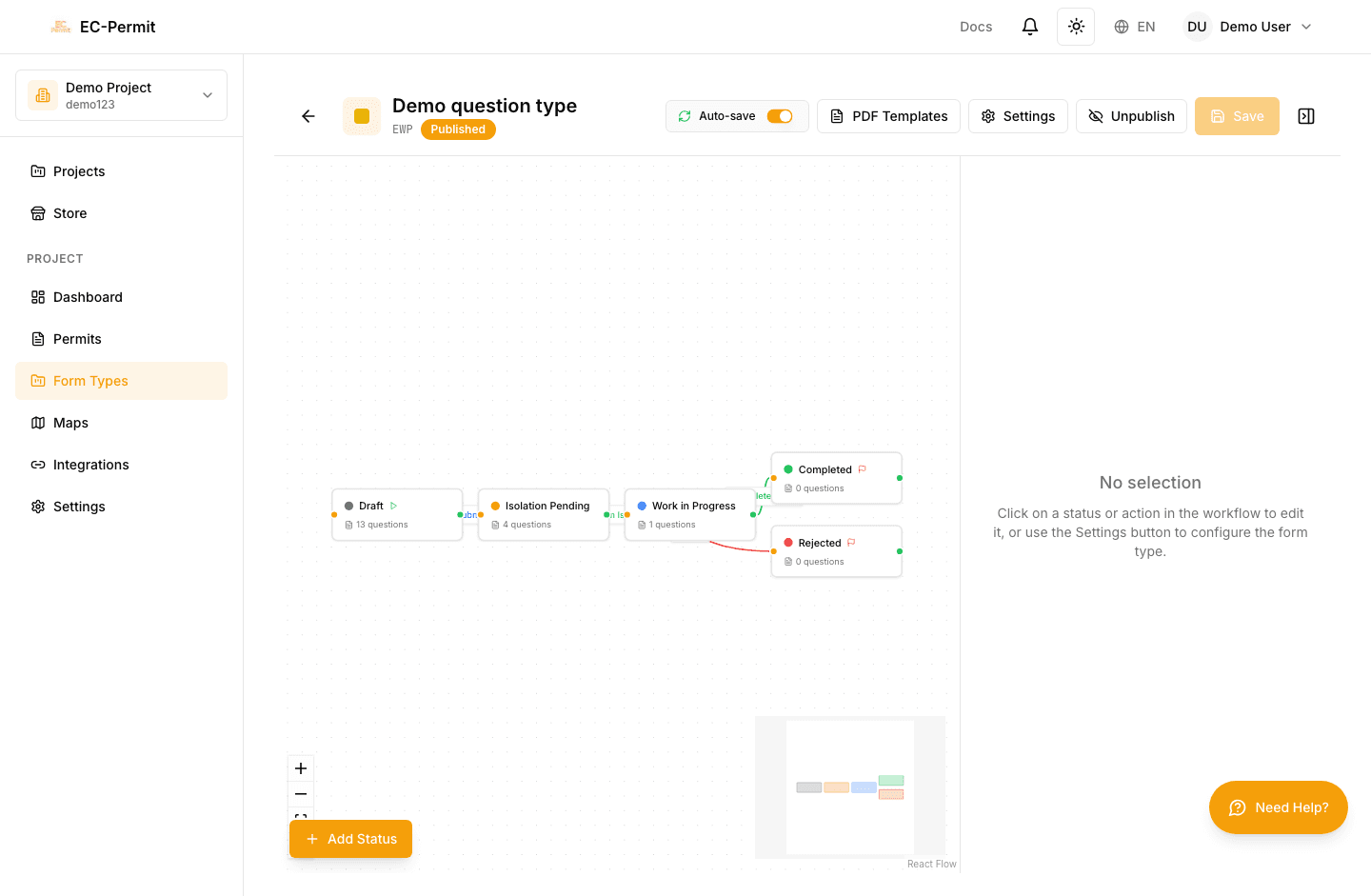
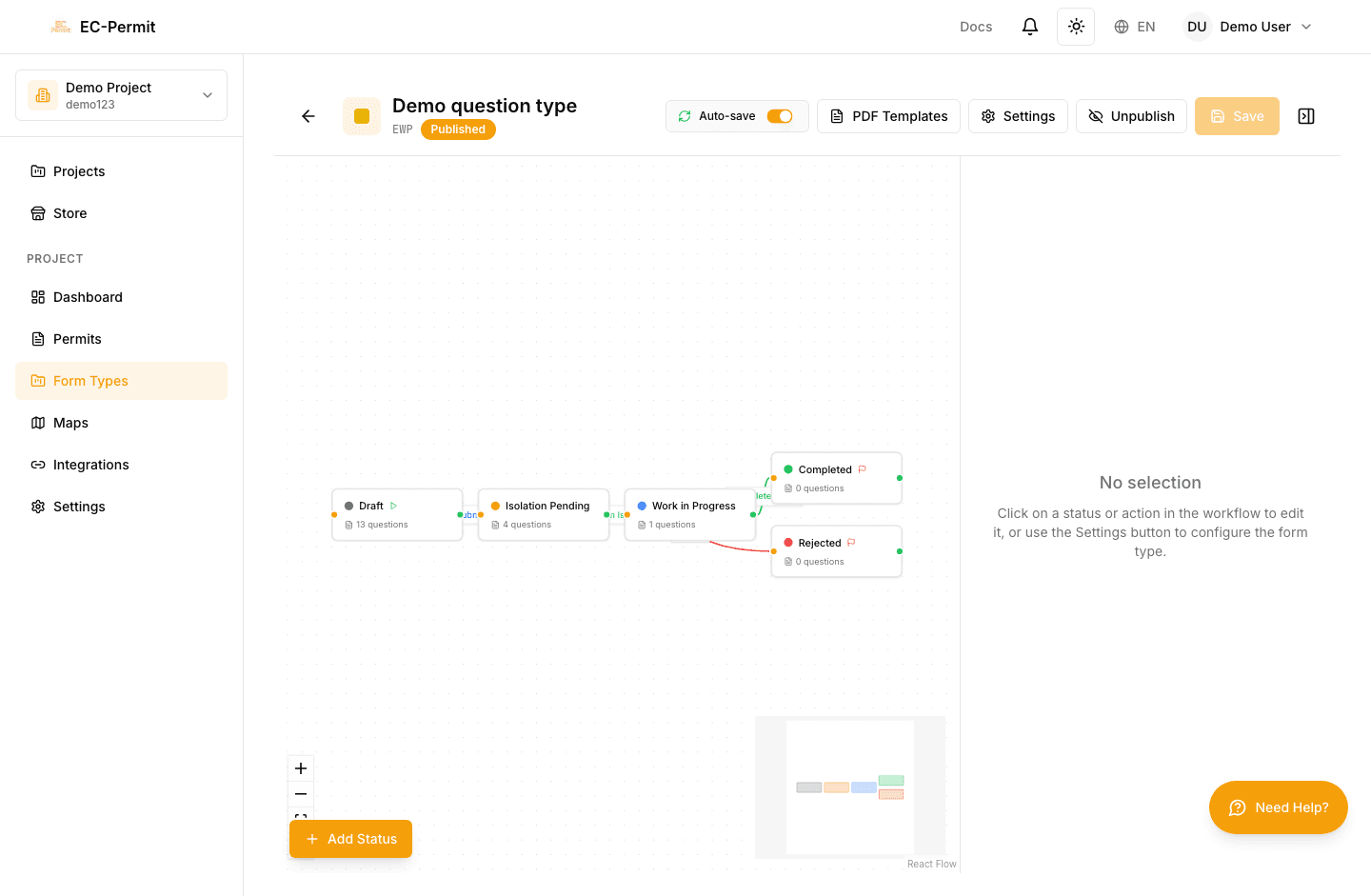
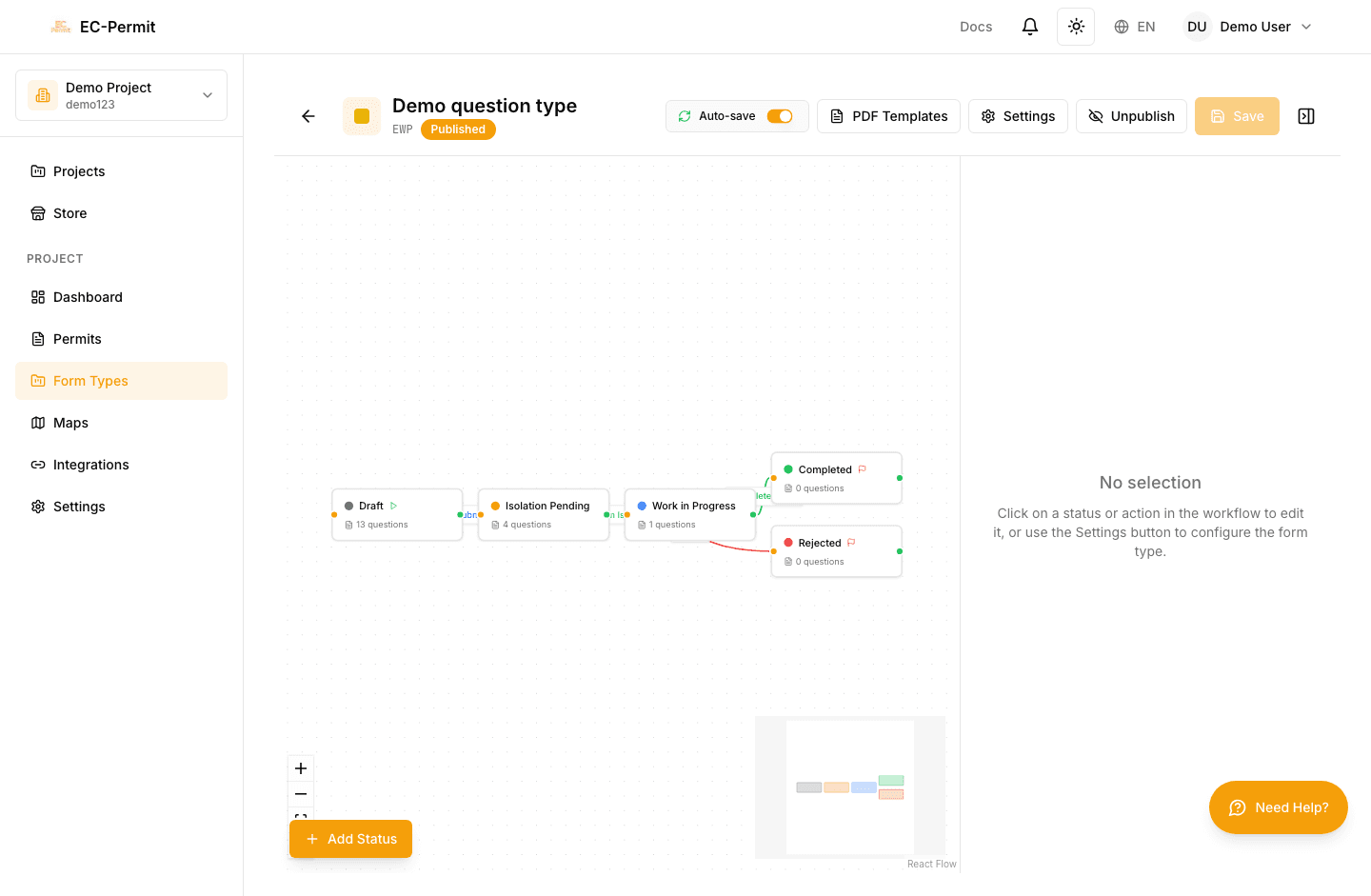
The workflow editor uses a visual canvas powered by React Flow:
- Drag statuses to position them on the canvas
- Connect statuses by dragging from one to another to create actions
- Click elements to configure their properties
- Zoom and pan to navigate large workflows
Creating Statuses
- 1Click "Add Status"
A new status node appears on the canvas
- 2Enter the status name
e.g., "Draft", "Pending Review", "Approved"
- 3Choose a color
Colors help users quickly identify form status
- 4Set status type
Initial (starting point), Normal, or Final (end state)
Required Statuses
Creating Actions
- 1Drag from one status to another
Creates a connection line between statuses
- 2Name the action
e.g., "Submit", "Approve", "Reject", "Return for Changes"
- 3Configure action properties
Set permissions, required comments, notifications
Action Settings
Each action can be configured with:
- Allowed Roles
Which roles can perform this action
- Require Comment
Force users to add a comment when taking this action
- Notification Settings
Who gets notified when this action is taken
- Button Color
Visual style (green for approve, red for reject, etc.)
Example Workflow
Two-level approval workflow: Reviewer → Final Approver → Approved
Testing Workflows